
Products
Variants and options: sizes, colors, materials
Add up to three options and Storelib makes every combination for you, each with its own price, quantity, photo and weight.
Updated 2 min read
On this page
An option is a choice the buyer makes, like Size. Its values are the answers, like 12 oz and 16 oz. Add a second option, like Glaze with Sand, Moss and Ink, and Storelib makes every combination. Each combination is a variant.
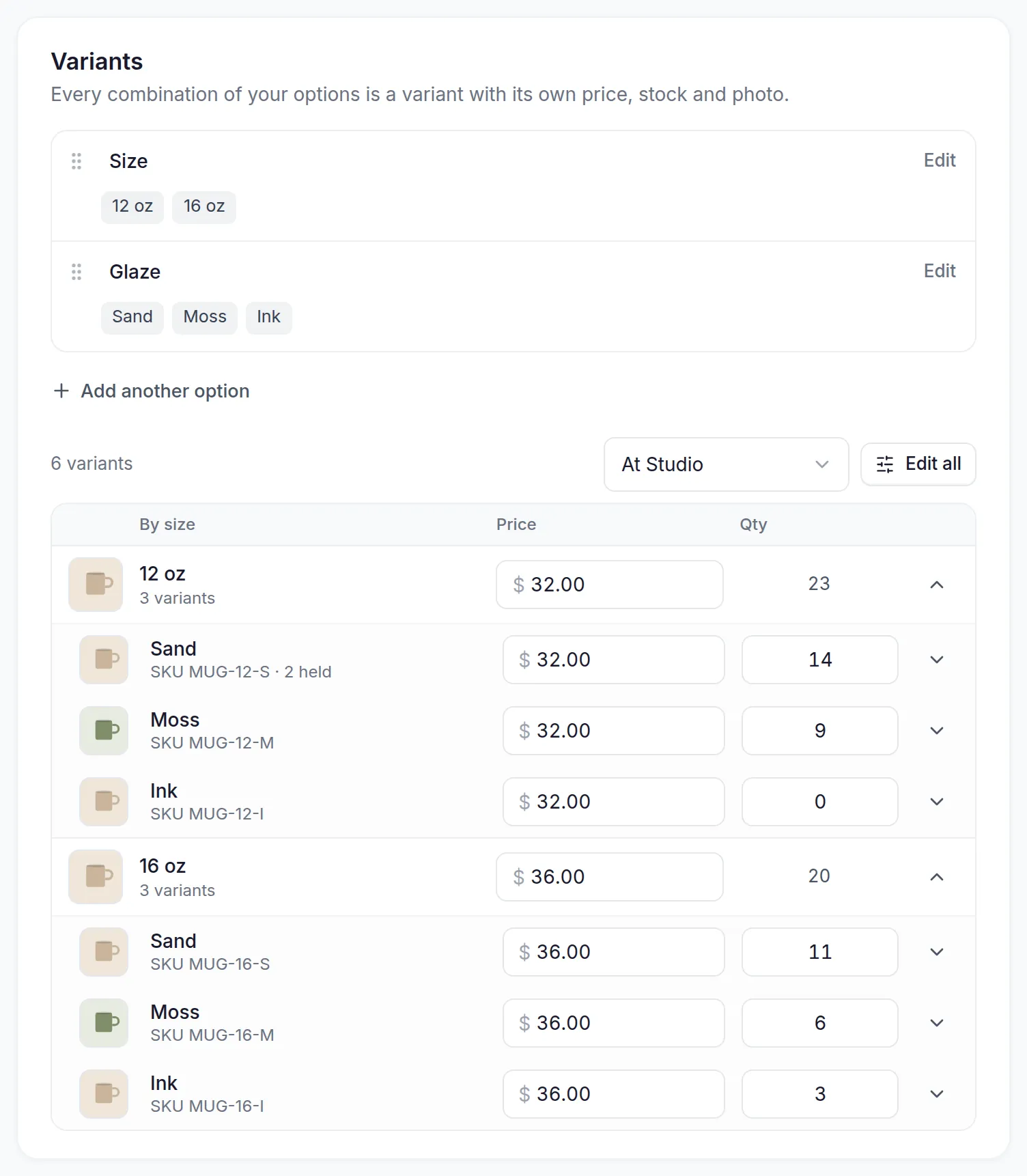
- In the Variants card, add an option. Pick a ready one like Size or Color, or name your own.
- Type a value, like Small, and press Enter or a comma. The next empty field is ready for the next value.
- Add up to three options, with up to 100 values each. Press Finish to close an option.
- To change the order, hold the handle beside an option or a value and move it.
- Fill in the rows: price and quantity. With two or more options, rows are grouped by the first one, and a group's price or photo applies to every variant in it.
- Press the photo square on a row to give that variant its own photo.
- Press the arrow at the end of a row for compare at price, SKU, barcode, weight, cost, and Sell this variant.
- To set one price, quantity, weight or cost for many variants at once, press Edit all.
- Save the product.
Good to know
- A price left empty uses the product's price. Prices are in your store's currency.
- A weight left empty uses the product's weight. Set it when, say, the large one weighs more.
- Turn off Sell this variant to stop selling one variant without deleting it. Buyers don't see it, and its stock and orders stay.
- Removing a value removes its variants. A variant somebody already bought is kept, hidden, so their order still makes sense.
- The product page shows the cheapest price until the buyer picks a variant. Colors with a common name get a swatch.
- Up to 250 variants per product.
- With more than one location, the Quantity at menu picks which location's stock you're typing.
Common mistakes
- Making separate products for each color. Use one product with a Color option instead, so buyers pick on one page.
- Typing a value and leaving it half done. Press Enter or a comma so it's added before you move on.
More in Products
- Create a physical product, step by step
- Set up size charts
- Ask buyers to personalize a product
- Upsells and bundles: sell more to people already buying
Related articles
- Inventory: how Storelib counts your stockTracking quantity, why you can never oversell, the Inventory page, and keeping selling when out of stock.
- Ask buyers to personalize a productAsk the buyer for a name to engrave, a message or a photo when they buy. Their answers go on the order, the emails and the packing slip.
- Upsells and bundles: sell more to people already buyingBundle products at a better price on their pages, and suggest one more thing in the checkout.
Still stuck? Contact support and a person on the team replies by email. Selling on Storelib? Open a request from your dashboard.