
Products
Upsells and bundles: sell more to people already buying
Bundle products at a better price on their pages, and suggest one more thing in the checkout.
Updated 4 min read
On this page
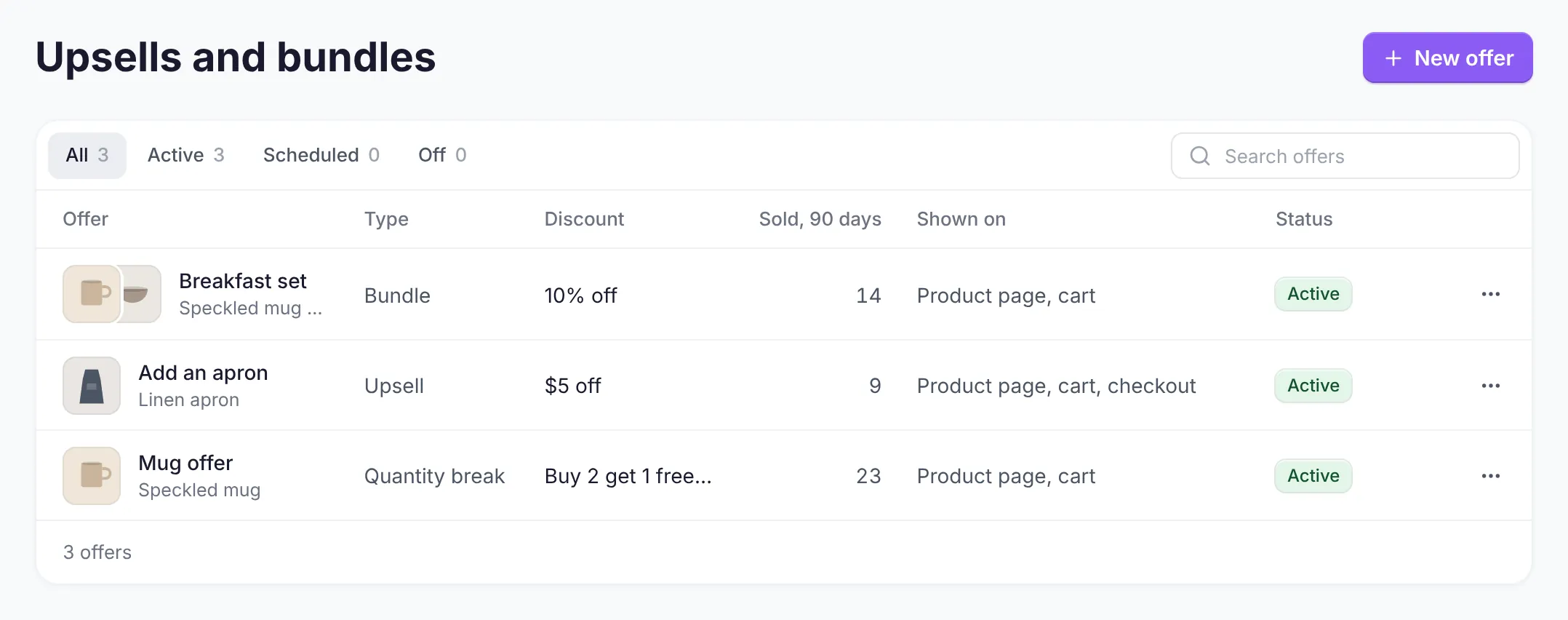
Someone already buying from you is the easiest person to sell one more thing to. Open Products > Upsells and bundles. There are three kinds of offer: a bundle, an upsell and a quantity break.
| Bundle | Upsell | Quantity break | |
|---|---|---|---|
| What it is | Two to five products bought together | One product suggested when the cart has others | More of one product for less each, or some free |
| Where buyers see it | On each of its products' pages and in the cart | On product pages, in the cart and in the checkout | On the product's page and in the cart |
| The discount | A percent off every item, an amount off the set, or free shipping | A percent or amount off that one product, or free shipping | Per tier: some units free, a percent or an amount off |
| When it applies | For every complete set in the cart | When the cart has anything, or the products or collections you choose | For every block of units that fits a tier |
Make a bundle
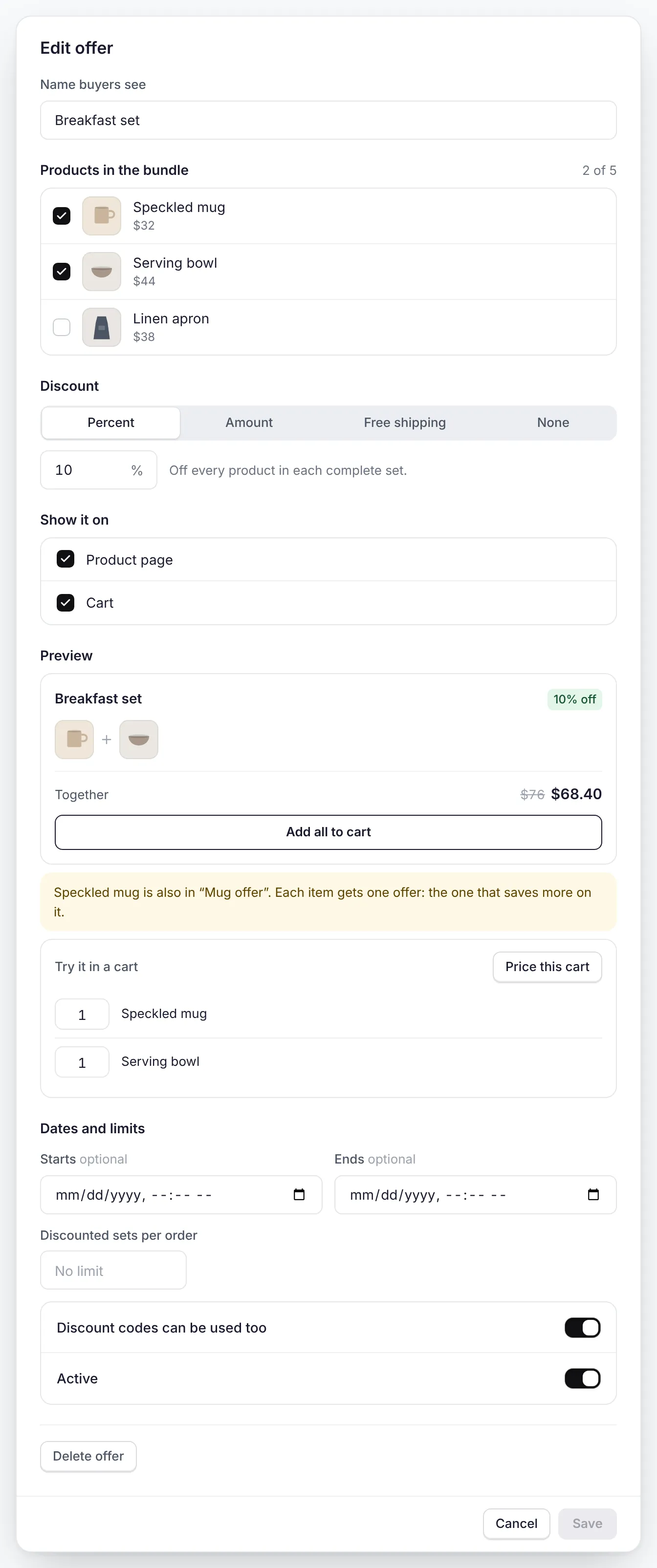
- Press New offer and choose Bundle.
- Give it a name buyers will see, like Breakfast set.
- Tick two to five products.
- Choose the discount. The line under it says what the set costs, and what it cost before.
- Under Show it on, keep the places you want it. Save, and it shows on each of its products' pages with Add all to cart.
Make an upsell
- Press New offer and choose Upsell.
- Name it, like Add an apron, and pick the product to offer.
- Under Show it when the cart has, choose Anything, Certain products or Collections. You can also ask for a minimum order.
- Choose the discount and where it shows, then save.
Make a quantity break
A quantity break rewards buying more of one product: Buy 2 get 1 free, or 3 for 15% off. It can cover one product, or every product of a collection, each at its own price.
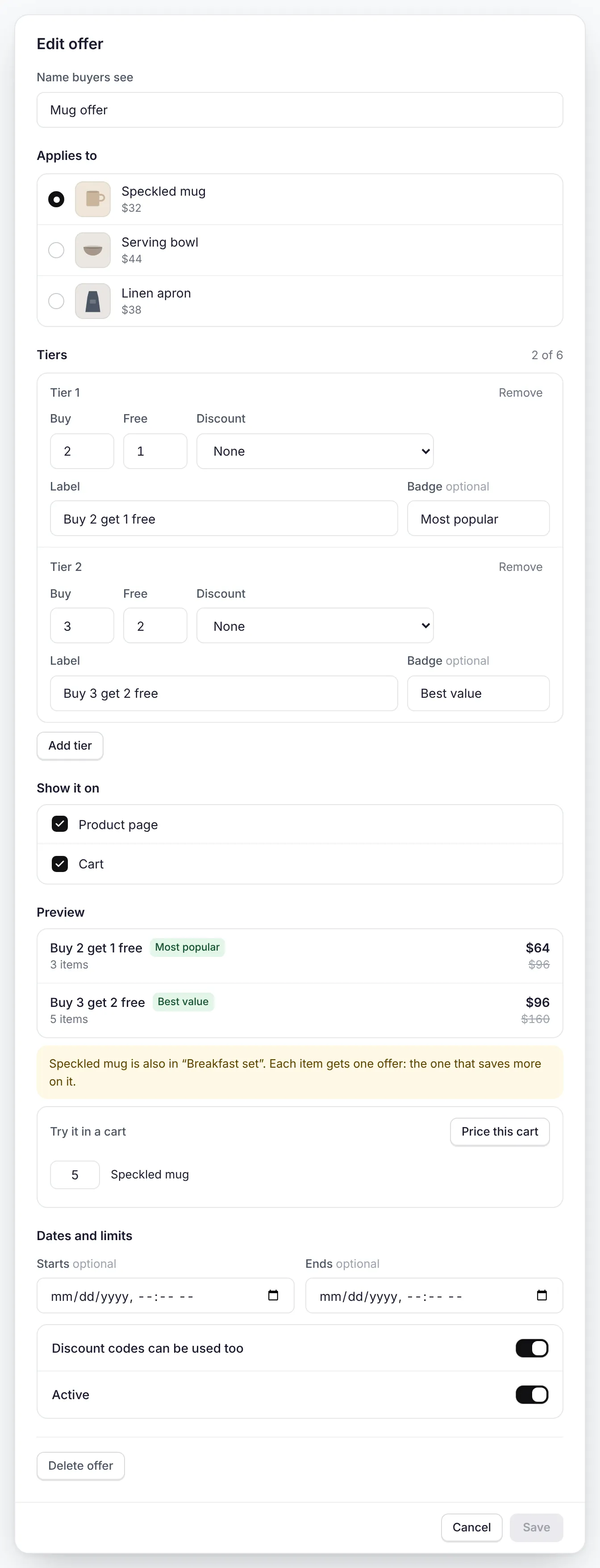
- Press New offer and choose Quantity break.
- Under Applies to, pick the product, or A collection and the collection.
- Set up to six tiers. Each has how many they buy, how many come free, and a percent or amount off what they pay for. Each tier needs more units than the one above.
- Give a tier a short badge like Most popular if you want one.
- Check the yellow notes, if any. One warns you when a bigger tier costs more per item than a smaller one.
- Save. Every unit of the product in the cart counts, whatever its option.
How units are counted: five units on tiers of 2 + 1 free and 3 + 2 free are one 3 + 2 block, so the buyer pays for 3. Eight units are a 3 + 2 block and a 2 + 1 block, so they pay for 5. Units that fit no tier pay full price. When the units have different prices, the free ones are the cheapest. When a bundle and a quantity break both want the same unit, the buyer gets whichever saves more on it, and the editor tells you when a product is in both.
Dates, limits and codes
Under More options, an offer can start and end at a set time, and a bundle or upsell can be limited to a number of sets or items per order. Discount codes can be used too is on by default: the offer's saving comes off first, and the code comes off what's left. Turn it off and a buyer with a code gets whichever saves more.
Switch any offer off from the list without deleting it. The Sold, 90 days column counts the units each offer sold in the last 90 days.
Offers work in the cart checkout. A digital product can be in a bundle or offered at checkout too, as long as it's bought through the cart.
Each kind step by step, the Bundles and upsells block on your website, and common problems: the upsells and bundles guide.
More in Products
- Create a physical product, step by step
- Variants and options: sizes, colors, materials
- Set up size charts
- Ask buyers to personalize a product
Related articles
- Upsells and bundles: the three kinds of offerQuantity breaks, bundles and upsells: what each one does for a buyer, where it shows, and how Storelib prices it in the cart and at checkout.
- Sell physical products on your websiteYour products, the cart and checkout are built into every Storelib website. Here's how to set them up and check them.
- What buyers see at checkoutYour website's checkout, step by step: on your own address, with your logo, and the card form inside the page.
- Create a physical product, step by stepFrom an empty product to one people can buy and you can ship, in about five minutes.
Still stuck? Contact support and a person on the team replies by email. Selling on Storelib? Open a request from your dashboard.