
Shipping and delivery
Set up shipping: profiles, zones and rates
Where you ship and what it costs, set once in Settings > Shipping and delivery. One General profile covers every product.
Updated 2 min read
On this page
Shipping is three boxes inside each other. A profile holds zones. A zone holds rates.
Profile: General
Every product
Zone: United States
Rates: Standard $5 · Express $15
Zone: Rest of world
Rates: Standard $18
Profile: Heavy items
Only the products you pick
Zone: United States
Rates: Freight $40
| Box | What it is | Example |
|---|---|---|
| Profile | Which products these prices are for | General (every product), or Heavy items (only the products you pick) |
| Zone | Where these prices apply | United States; Europe; Rest of world |
| Rate | An option the buyer picks, its price and how long it takes | Standard, $6, 3 to 5 business days |
Set up your General profile
- Open Settings and choose Shipping and delivery.
- Under Units, choose Metric (kg, cm) or Imperial (lb, in).
- In the General profile, press Add shipping zone.
- Pick the countries, or a country's states. Select all picks every country at once.
- Save the zone, then press Add rate inside it.
- Type the name buyers see, like Standard. Pick the rate type and the price, and type how many business days it takes.
- Add an Express rate the same way if you want one.
- Add a Rest of world zone if you ship everywhere else too.
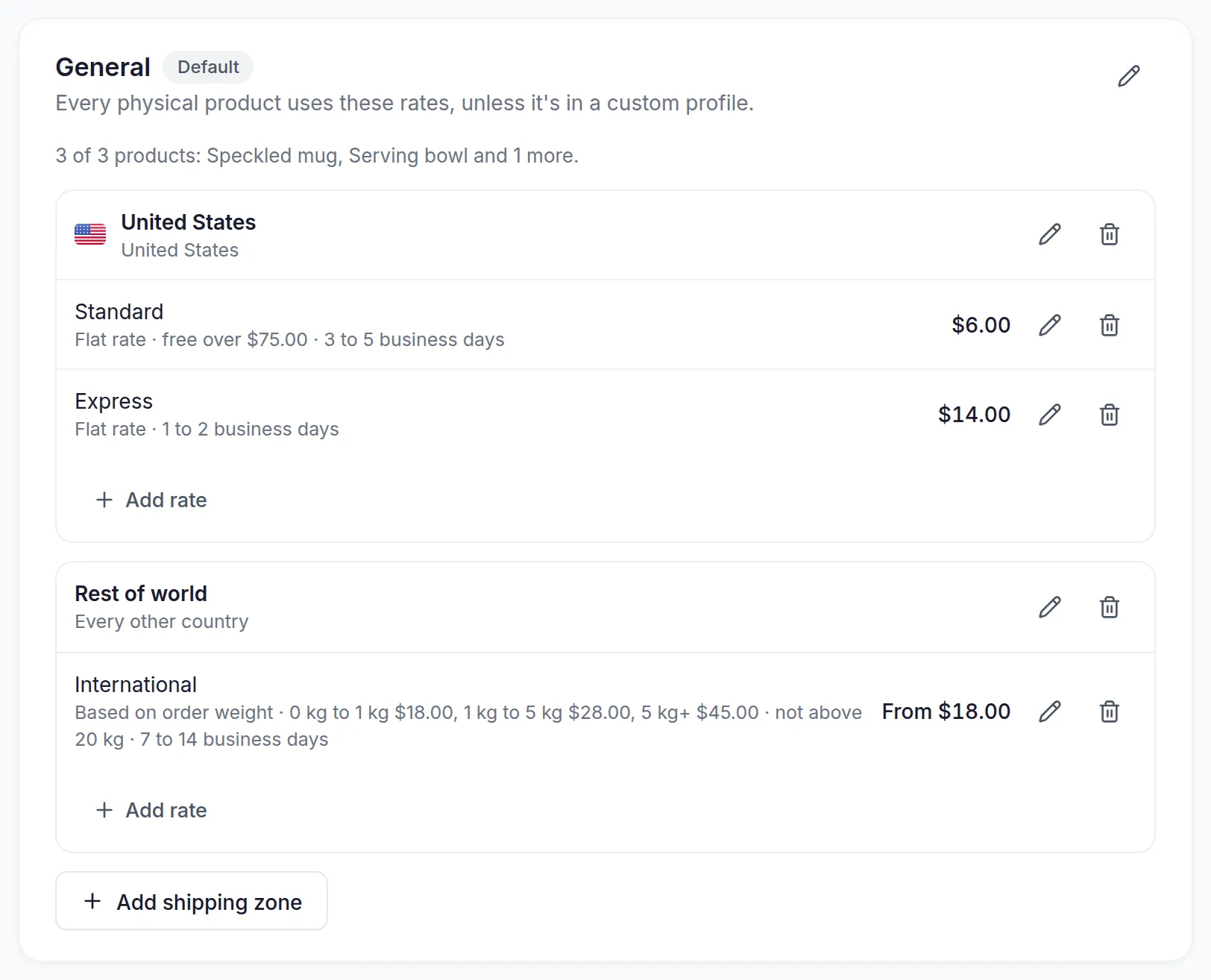
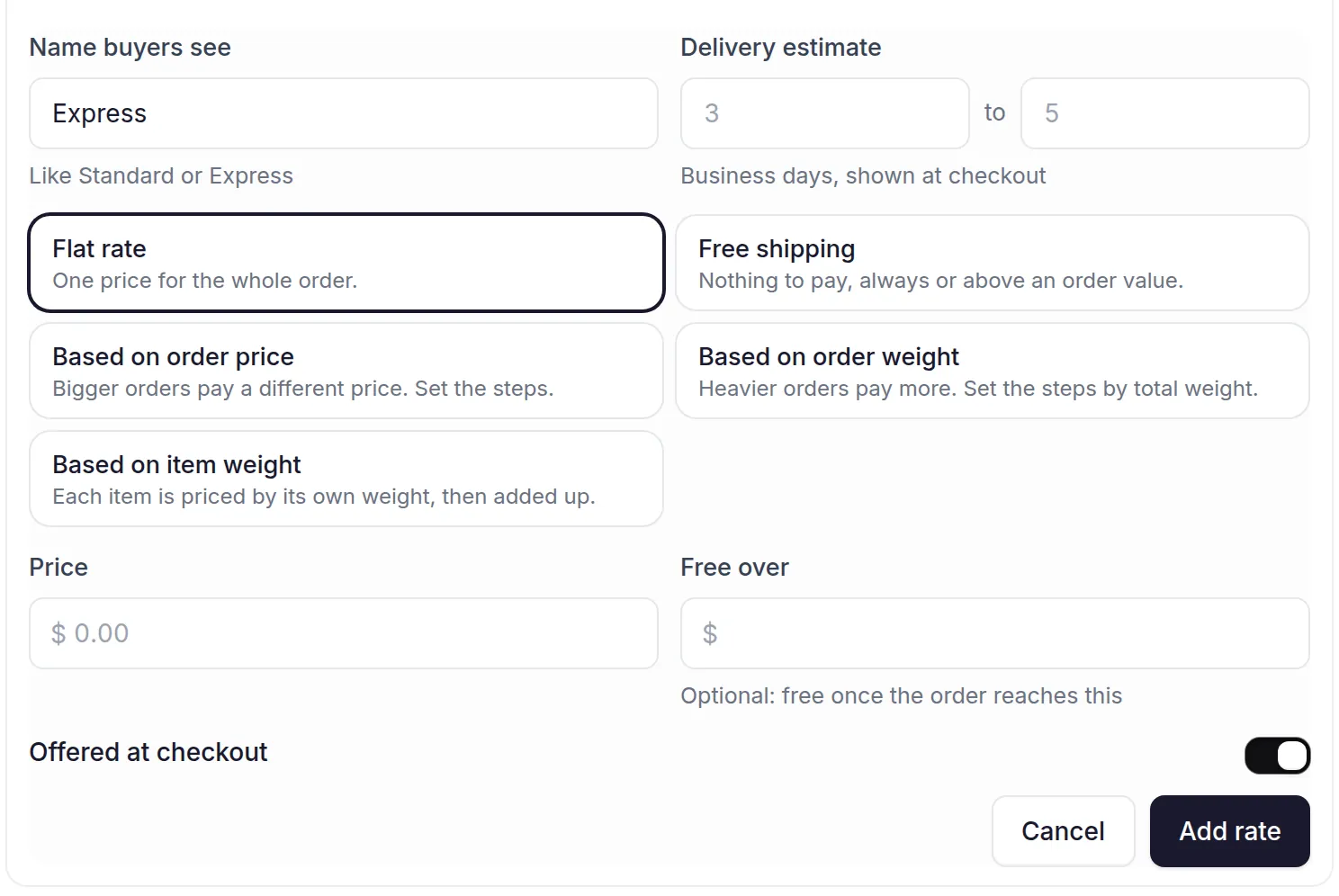
Zones in detail, with states and Rest of world: Shipping zones. Every rate type, with real numbers: Shipping rates.
Custom profiles
Make a custom profile when some products ship at different prices, like a heavy lamp next to light prints.
- Press Custom shipping profile and name it, like Heavy items.
- Add the products that ship at these rates. Picking a product that's in another profile moves it here.
- Give the profile its own zones and rates, the same way as General.
You can also pick a product's profile from the product itself, in its Shipping card under Shipping rates. Every other product keeps using General.
A cart with products from two profiles
Checkout adds them up. If both profiles have a rate with the same name, like Standard, the buyer sees one Standard at the two prices added together. If they share no name, the buyer sees Standard shipping: the cheapest rate of each, added together.
When nothing ships to an address
If a buyer's address is in no zone, or the cart doesn't fit any rate (for example it's heavier than your last step allows), checkout says shipping isn't available there and Pay stays off. If you offer local pickup, the buyer can choose that instead. Nobody can pay for shipping you don't offer.
Common mistakes
- No zone for your own country. Add it first.
- Forgetting Rest of world when you do ship abroad. Buyers abroad can't check out without it.
- A weight based rate with products that have no weight. They count as weighing nothing.
More in Shipping and delivery
- Shipping zones: countries, states and Rest of world
- Shipping rates: every type, with real numbers
- Units and packages
- Local pickup
- Who ships it: fulfilment types
Related articles
- Shipping rates: every type, with real numbersFlat, free, by order price, by order weight and by item weight: what each rate charges, worked through with examples.
- Units and packagesPick kilograms or pounds, and save the boxes you ship in so weight based rates charge for the whole parcel.
- Local pickupLet buyers collect their order from your studio, shop or home instead of paying for shipping.
- Who ships it: fulfilment typesShip it yourself, or use a fulfillment center, a supplier or print on demand: one answer for the store, and any product can have its own.
Still stuck? Contact support and a person on the team replies by email. Selling on Storelib? Open a request from your dashboard.