
Shipping and delivery
Units and packages
Pick kilograms or pounds, and save the boxes you ship in so weight based rates charge for the whole parcel.
Updated 1 min read
On this page
Units
- Open Settings > Shipping and delivery.
- Under Units, choose Metric (kg, cm) or Imperial (lb, in).
Weights and sizes are typed and shown in that system: on new products, in rates and in packages. Your rates keep working when you switch. A product can still use another unit: its Shipping card has its own unit picker, and the weight you typed is converted for you.
Packages
A package is a box or mailer you ship in, with its size and empty weight. Storelib adds the empty weight of your default package to what's inside when it works out a weight based rate, so the buyer pays for what the parcel really weighs.
- In Shipping and delivery, find Packages and press Add package.
- Name it, pick the type, and type its size and empty weight.
- Save. Mark the one you use most as the default.
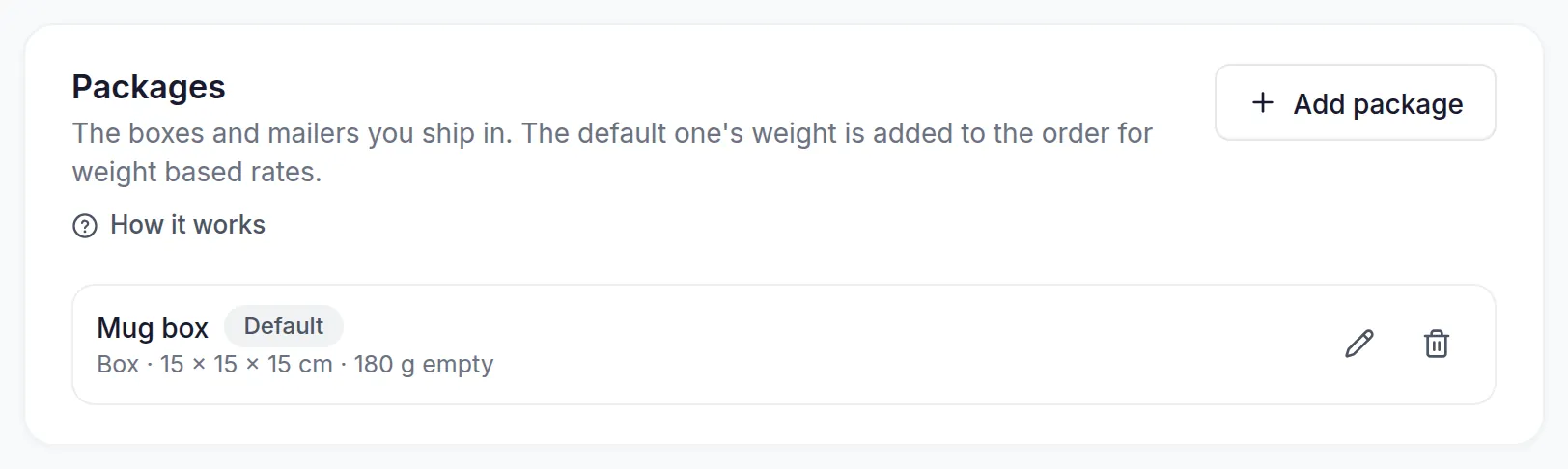
Without a package, weight based rates count the products alone, so buyers pay a little less than the parcel really weighs.
More in Shipping and delivery
- Set up shipping: profiles, zones and rates
- Shipping zones: countries, states and Rest of world
- Shipping rates: every type, with real numbers
- Local pickup
- Who ships it: fulfilment types
Related articles
- Create a physical product, step by stepFrom an empty product to one people can buy and you can ship, in about five minutes.
- Set up shipping: profiles, zones and ratesWhere you ship and what it costs, set once in Settings > Shipping and delivery. One General profile covers every product.
- Shipping zones: countries, states and Rest of worldHow a zone picks up a buyer's address, how to ship to only some states, and what Rest of world covers.
- Who ships it: fulfilment typesShip it yourself, or use a fulfillment center, a supplier or print on demand: one answer for the store, and any product can have its own.
Still stuck? Contact support and a person on the team replies by email. Selling on Storelib? Open a request from your dashboard.