
Set up your store
What buyers see at checkout
Your website's checkout, step by step: on your own address, with your logo, and the card form inside the page.
Updated 2 min read
On this page
Buyers reach checkout from Check out in the cart or a Buy button on your website. Checkout opens on your website's own address, at /checkout, with your logo across the top, a Back arrow and Continue shopping. The card form is inside the page, so buyers never leave your site to pay.
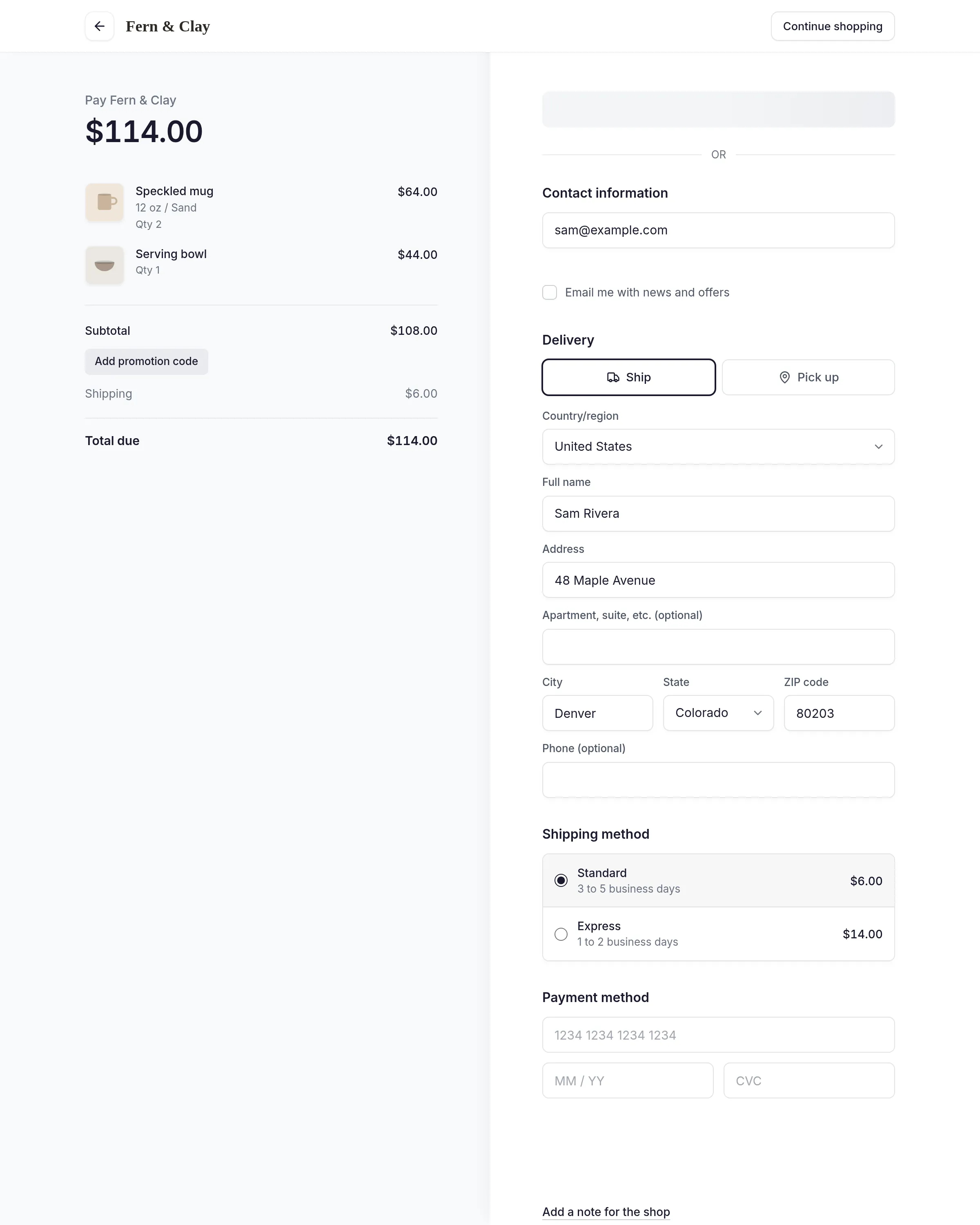
On the left: the order
- Pay and your store's name, with the total.
- The items, with their variant and quantity.
- Add promotion code, for a discount code.
- Subtotal, shipping or pickup, tax if you charge it, and Total due.
On the right: what the buyer fills in
- Apple Pay or Google Pay at the top, when their device has one.
- Contact information: their email, and the news box if you turned it on. If you ask buyers to sign in, a Sign in box shows here first.
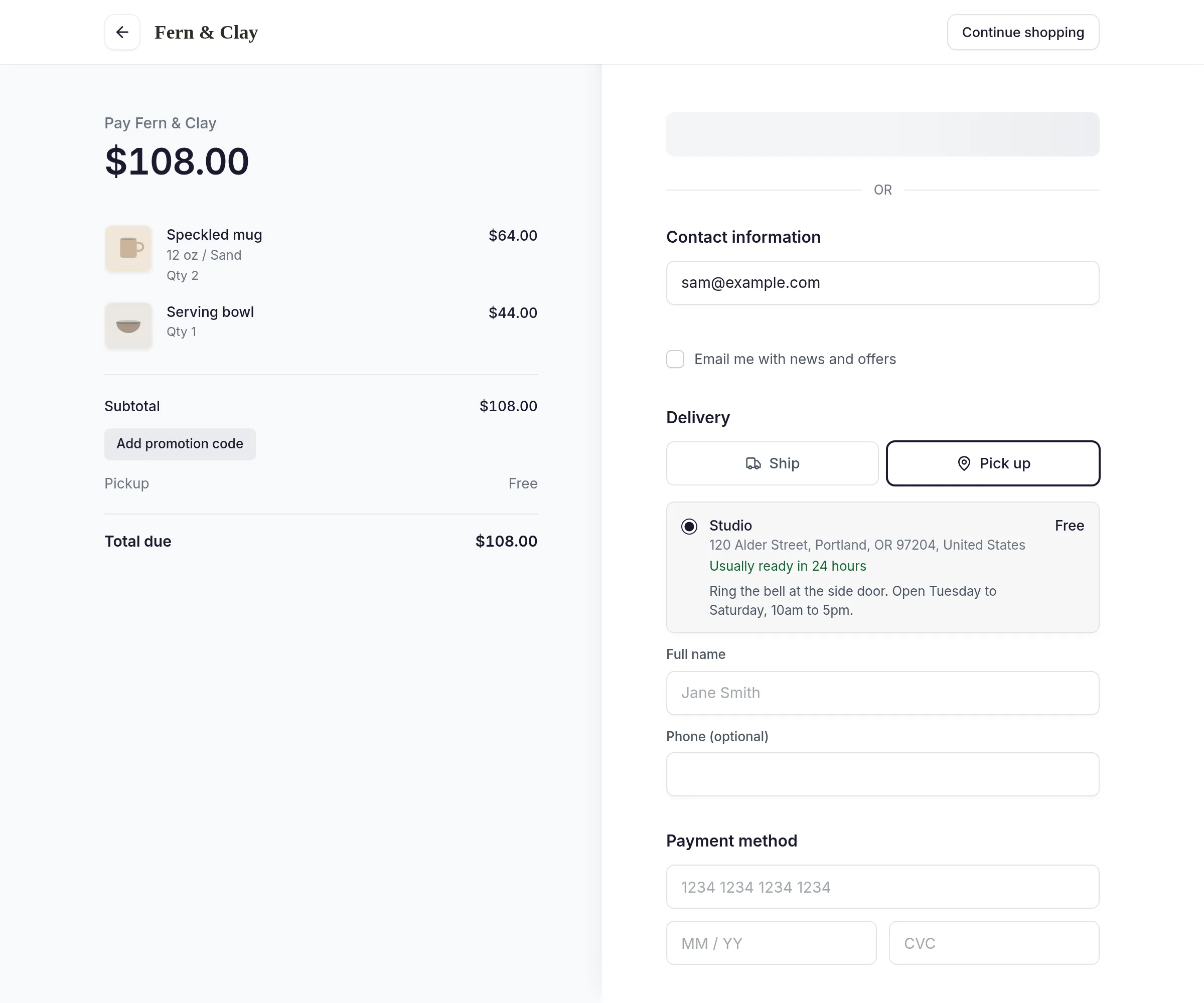
- Delivery, for orders that ship: Ship or Pick up (Pick up only if you offer it), the country first, then the name and address in that country's format, and the fields you chose in Settings > Checkout.
- Shipping method: the rates that fit the address and cart, with price and delivery time. One is picked for them, and they can change it.
- Payment method: the card form.
- Optional: a note for the shop, and Buying for a business to get an invoice with a company name and tax number, when you turn on Company invoices in Settings > Checkout.
- A box to agree to the terms and the refund policy, then Pay with the total on it.
After they pay
A thank you page opens on your website, the cart empties, and they get the order confirmation email. You get an email and the order shows in Orders as Unfulfilled.
Good to know
- Every price, shipping cost and tax is worked out by Storelib's server from your settings. Nothing the page sends is trusted for money.
- A free order shows Get it free or Place order and needs no card.
- If something in the cart sold out or can't ship to the address, checkout says so before Pay.
More in Set up your store
- Store details: logo, name, contact email, country and currency
- Cash on delivery: take payment when the order arrives
- Checkout settings: what checkout asks for
- Customer accounts on your website
- Sales channels: where your products are listed
- Put your store on your own domain
Related articles
- Local pickupLet buyers collect their order from your studio, shop or home instead of paying for shipping.
- Taxes: how Storelib charges tax on your ordersAdd a tax region for each place you have to charge tax, choose whether prices include it, and see exactly what a buyer pays.
- Store details: logo, name, contact email, country and currencyWhat buyers see on receipts, order emails and checkout, where your store is based and the currency it sells in. Set it once in Settings > Store details.
- Cash on delivery: take payment when the order arrivesLet buyers pay in cash when an order is delivered or picked up. Turn it on, choose where, add a fee or a note, and mark orders paid or refused.
Still stuck? Contact support and a person on the team replies by email. Selling on Storelib? Open a request from your dashboard.