
Set up your store
Checkout settings: what checkout asks for
Choose the name fields, company, phone and address line 2, the news box, checkout reminders, and whether buyers sign in first.
Updated 2 min read
On this page
Open Settings and choose Checkout. These settings apply to every checkout your store has: your website's and the one for a single product. Everything saves as you change it and reaches checkout within a few seconds. Orders already placed don't change.
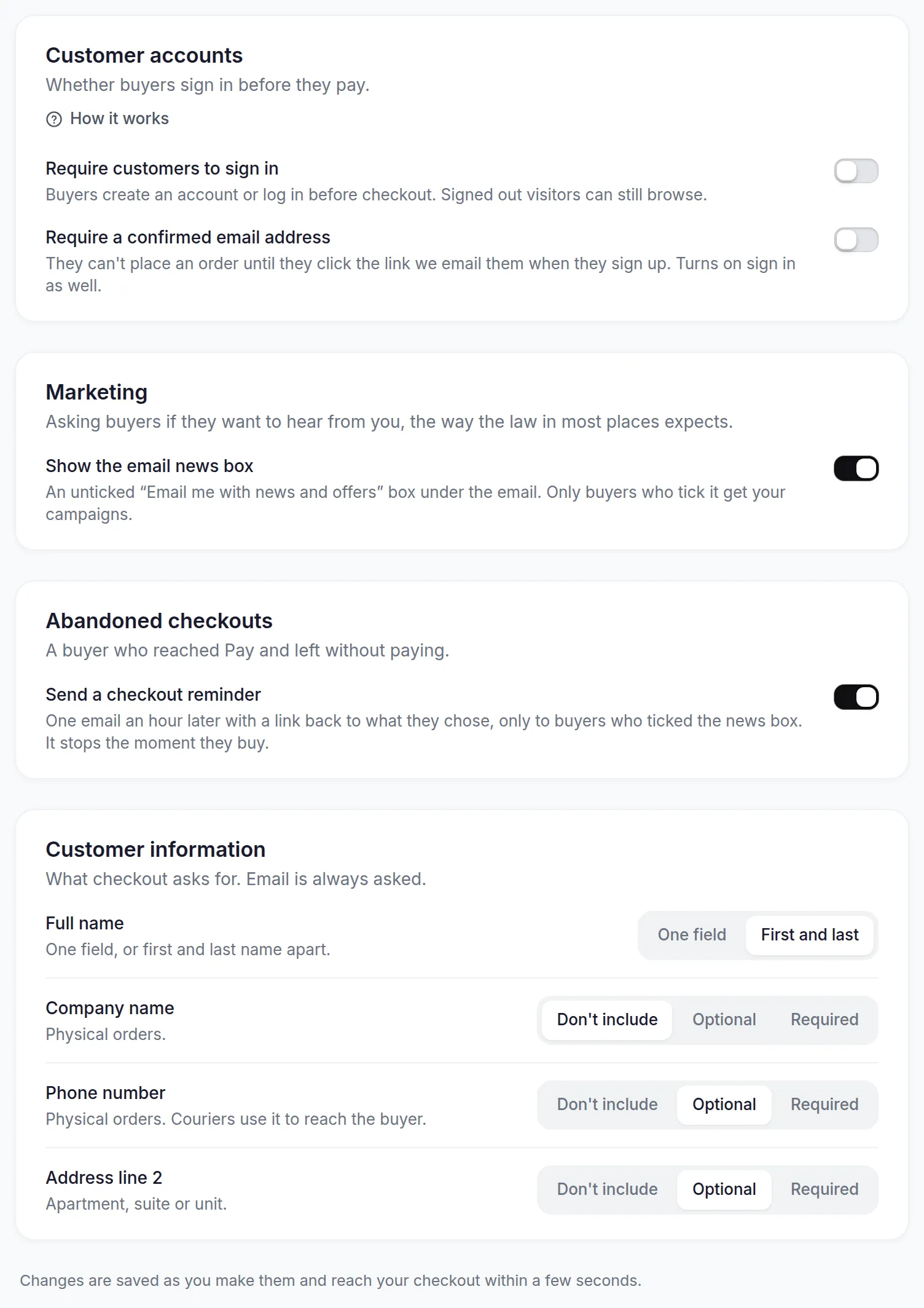
Customer information
| Field | Choices | Good to know |
|---|---|---|
| Full name | One field, or First and last | Email is always asked. |
| Company name | Don't include, Optional, Required | Only asked on orders that ship. Most shops pick Don't include. |
| Phone number | Don't include, Optional, Required | Only on orders that ship or are picked up. Couriers use it to reach the buyer. |
| Address line 2 | Don't include, Optional, Required | Apartment, suite or unit. Optional suits most shops. |
A field you mark Required is required on the page and checked again when the order is placed, so it can't be skipped.
Marketing
Show the email news box adds an Email me with news and offers box under the email. It's never ticked for the buyer. Only buyers who tick it get your campaigns.
Abandoned checkouts
- Send a checkout reminder emails a buyer who reached Pay and left without paying, an hour later, with a link back to what they chose.
- It only goes to buyers who ticked the news box or are already on your list, because a reminder is marketing and needs their yes. It always has an unsubscribe link.
- It doesn't go if they bought in the meantime. Its Finish checkout button opens checkout again with the same items.
- One person gets it at most once a week.
- Built your own reminder in Emails > Automations? Then buyers get yours instead.
- Change its words in Settings > Customer emails > Checkout reminder.
Customer accounts
- Require customers to sign in: on your website, buyers sign in to their account before they pay, with a code emailed to them. Visitors can still browse. See Customer accounts.
- Require a confirmed email address: the buyer has to prove the email is theirs. On your website, signing in with the emailed code proves it, so this also turns on sign in.
- Signed in, the email at checkout is the account's, and the order shows on their account page.
Asking for sign in stops some people buying. Leave both off unless you need them.
Free products
A product with a price of 0, or an order a discount code takes to 0, has no card step. The buyer presses Get it free or Place order and the order is made.
More in Set up your store
- Store details: logo, name, contact email, country and currency
- Cash on delivery: take payment when the order arrives
- What buyers see at checkout
- Customer accounts on your website
- Sales channels: where your products are listed
- Put your store on your own domain
Related articles
- Customer accounts on your websiteBuyers sign in on your website with a code sent to their email, see their orders and keep a wishlist. No passwords.
- Customer emails: what your buyers get, and whenOrder confirmation, shipping, delivery, pickup, refunds, returns and the checkout reminder: when each goes and how to change its words.
- Store details: logo, name, contact email, country and currencyWhat buyers see on receipts, order emails and checkout, where your store is based and the currency it sells in. Set it once in Settings > Store details.
- Sales channels: where your products are listedShow a product on your website, your creator page and Explore, or take it off one, without deleting it.
Still stuck? Contact support and a person on the team replies by email. Selling on Storelib? Open a request from your dashboard.