
Customer emails
Customer emails: what your buyers get, and when
Order confirmation, shipping, delivery, pickup, refunds, returns and the checkout reminder: when each goes and how to change its words.
Updated 3 min read
On this page
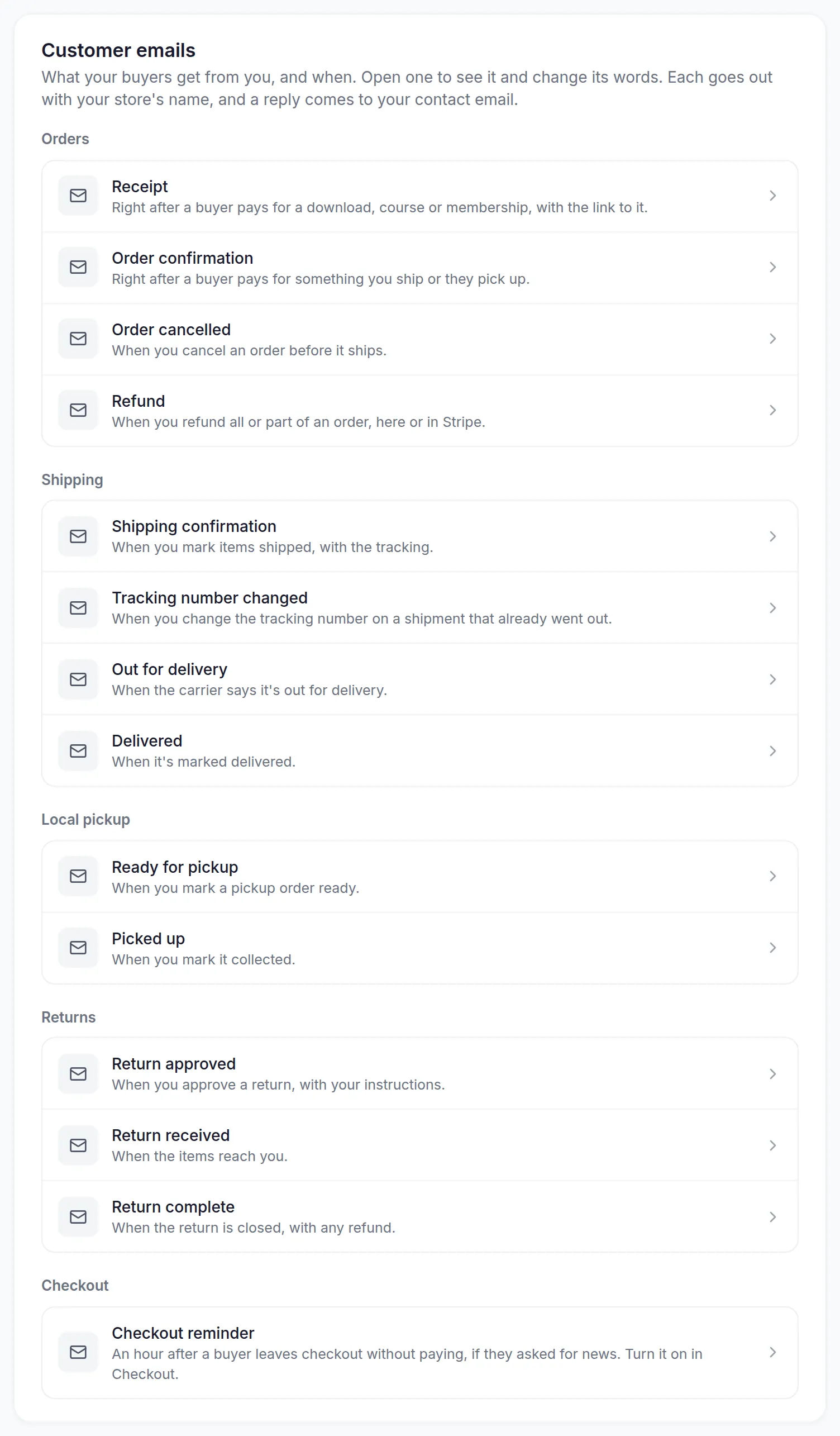
Storelib emails your buyers at every step of an order. You don't send anything yourself. Each email carries your store's name and logo, and a buyer's reply goes to your contact email in Settings > Store details.
Change an email
- Open Settings and choose Customer emails.
- Press an email. Its preview opens with a sample order.
- Change the words: Subject, Heading, Text and Button.
- To add the buyer's first name, the order number, your store name or what they bought, tap that placeholder while you're typing. It's filled in for each order.
- Watch the preview change as you type, then press Save.
- Changed your mind? Reset to default puts our words back.
- The items, totals, tracking and links stay as they are, filled in from each order. You change the words around them.
- Close an email with unsaved changes and it asks before throwing them away.
- On a phone, an email opens as a sheet from the bottom, with Preview and Edit.
When each one goes
| Sent when | |
|---|---|
| Order confirmation | Right after the buyer pays for something you ship or they pick up. |
| Order updated | You change the shipping address on an order before it ships. |
| Payment failed | Half an hour after a buyer's bank declines their payment, if they still haven't paid. That cart then gets no checkout reminder. |
| Shipping confirmation | You fulfill items. It has the Track your package button. |
| Tracking number changed | You change the tracking on a shipment that already went out. |
| Out for delivery | The carrier or a partner says it's out for delivery, or you mark it. |
| Delivered | The carrier or a partner says it arrived, or you mark it delivered. |
| Delivery issue | A shipment has a delivery problem: the carrier, a partner's update, or you said so. You get an email too. |
| Ready for pickup | You mark a pickup order ready. |
| Picked up | You mark it collected. |
| Order cancelled | You cancel an order before it ships. |
| Refund | You refund all or part of an order. |
| Return requested | A buyer asks to return items, so they know it arrived. You get an email too. |
| Return approved, declined, received and complete | At each step of a return. |
| Checkout reminder | An hour after a buyer leaves checkout without paying, only if they asked for news. Turn it on in Settings > Checkout. |
Emails to you
You get an email for each new order (where it goes, how, who fulfils each item, and what to do next), one when a buyer writes to you with Contact the shop, asks to cancel or to return something, one when a delivery fails or a parcel is never confirmed delivered, and a low stock email when something sells down to its line (see Low stock alerts). Choose what you get in Settings > Notifications.
These are order emails. Newsletters and automations are in Emails in the dashboard menu, and only go to people who agreed to hear from you.
Related articles
- Tracking and the buyer's order pageHow tracking links are made, how parcels are followed for you, how a partner adds tracking, and the order page where buyers follow their parcel.
- Store details: logo, name, contact email, country and currencyWhat buyers see on receipts, order emails and checkout, where your store is based and the currency it sells in. Set it once in Settings > Store details.
- Checkout settings: what checkout asks forChoose the name fields, company, phone and address line 2, the news box, checkout reminders, and whether buyers sign in first.
Still stuck? Contact support and a person on the team replies by email. Selling on Storelib? Open a request from your dashboard.