
Locations and inventory
Low stock alerts and Only N left
Set the line where stock counts as low, get an email when something sells down to it, and show buyers when few are left.
Updated 1 min read
On this page
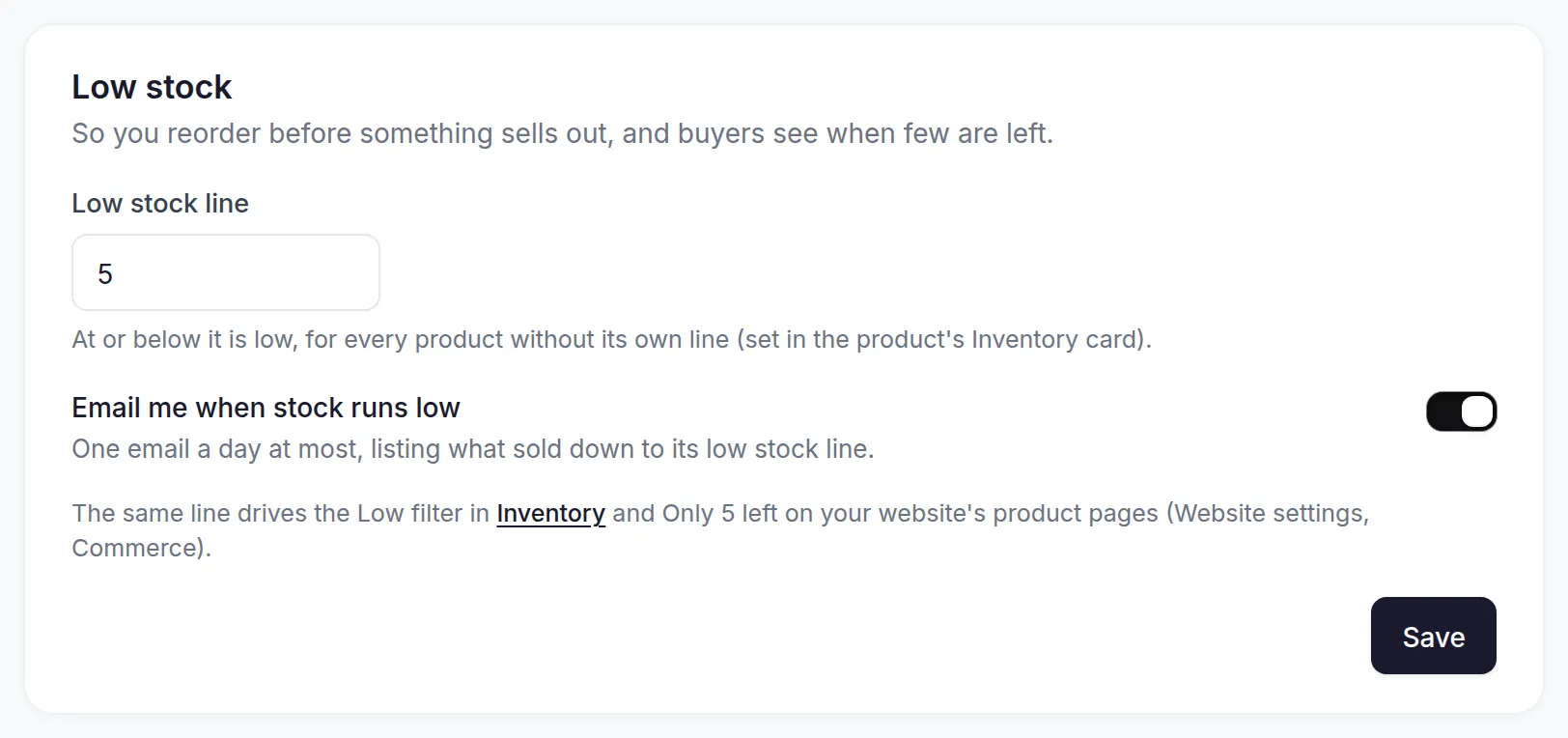
The low stock line is a number. At or below it, a variant counts as low. One line drives three things: an email to you, the Low stock view in Inventory, and Only 3 left on your website.
Set it up
- Open Settings > Locations and find Low stock.
- Type the Low stock line for your shop, for example 5.
- Keep Email me when stock runs low on.
- Press Save.
- For a product that needs its own line, open it and set Low stock alert in its Inventory card. That number wins for that product.
The email
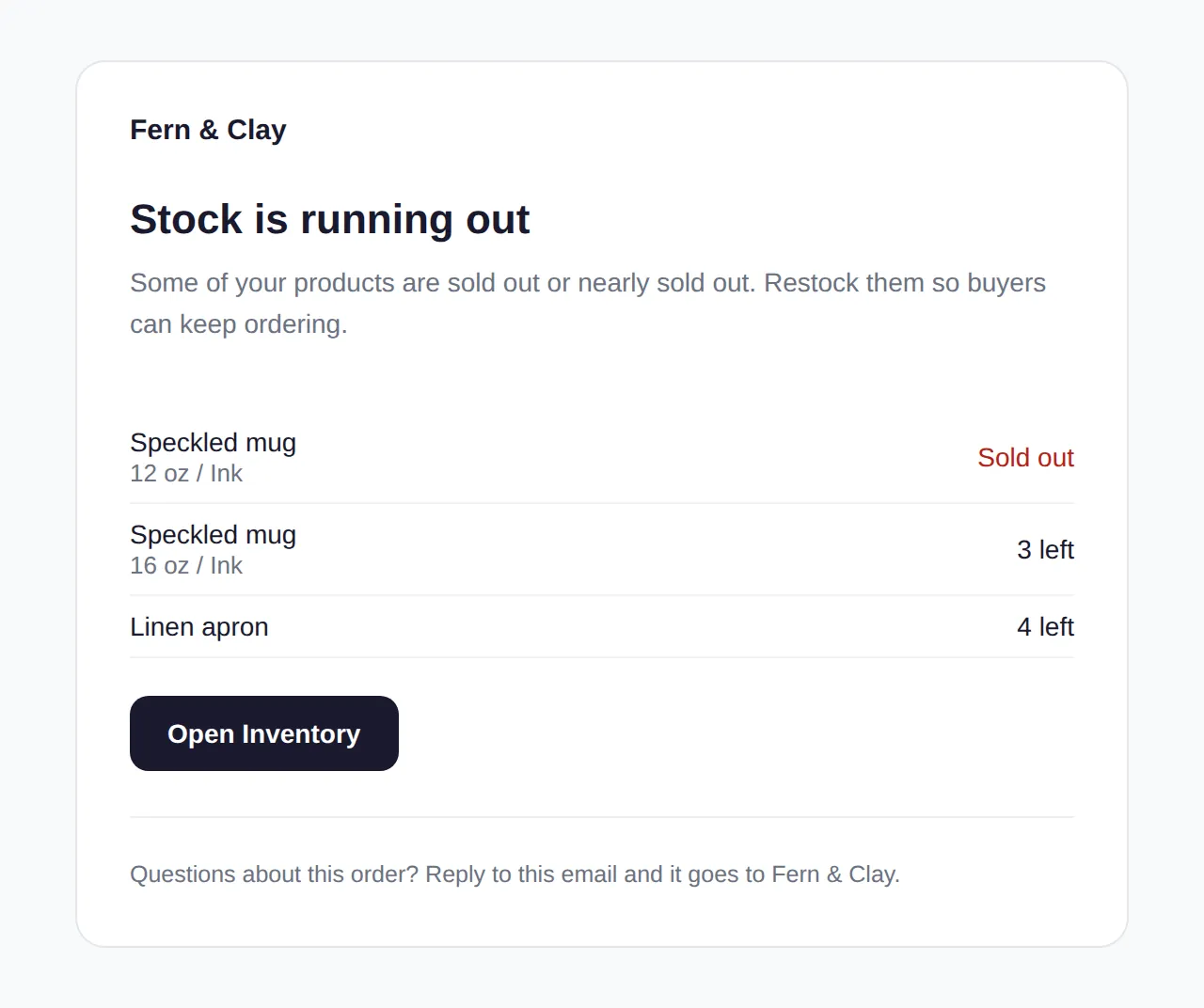
- It's sent after a sale brings a variant to its line or below.
- It lists everything that is low at that moment, with how many are left.
- The same items don't email you twice in one day.
- Products with Track inventory off never count as low.
- To stop these emails, turn off Email me when stock runs low.
Only N left on your website
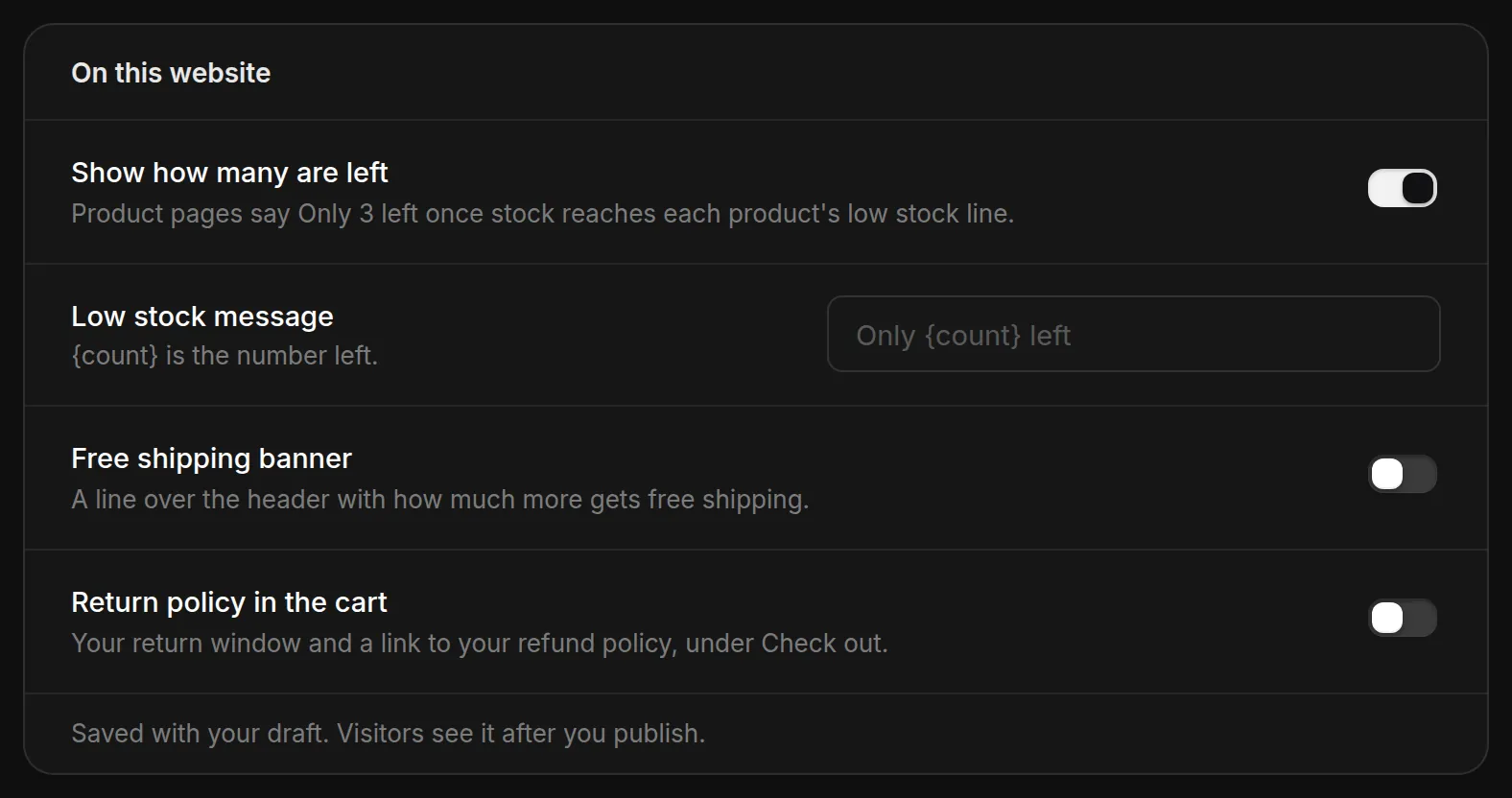
In the website editor, open Website settings > Commerce and turn on Show how many are left. A product page then says Only 3 left once stock reaches that product's line. Change the words with Low stock message, where {count} is the number left.
More in Locations and inventory
All physical products articlesRelated articles
- Sell physical products on your websiteYour products, the cart and checkout are built into every Storelib website. Here's how to set them up and check them.
- Locations: where your stock lives and ships fromAdd your home, studio, warehouse or partner as a location, choose who ships from it, and pick the default.
Still stuck? Contact support and a person on the team replies by email. Selling on Storelib? Open a request from your dashboard.