
Taxes
Taxes: how Storelib charges tax on your orders
Add a tax region for each place you have to charge tax, choose whether prices include it, and see exactly what a buyer pays.
Updated 4 min read
On this page
Storelib charges the tax you set and nothing else. No rates are switched on for you and nothing is guessed, because what you owe depends on where you're registered. Only you and your accountant know that.
Set it up
- Open Settings and choose Taxes.
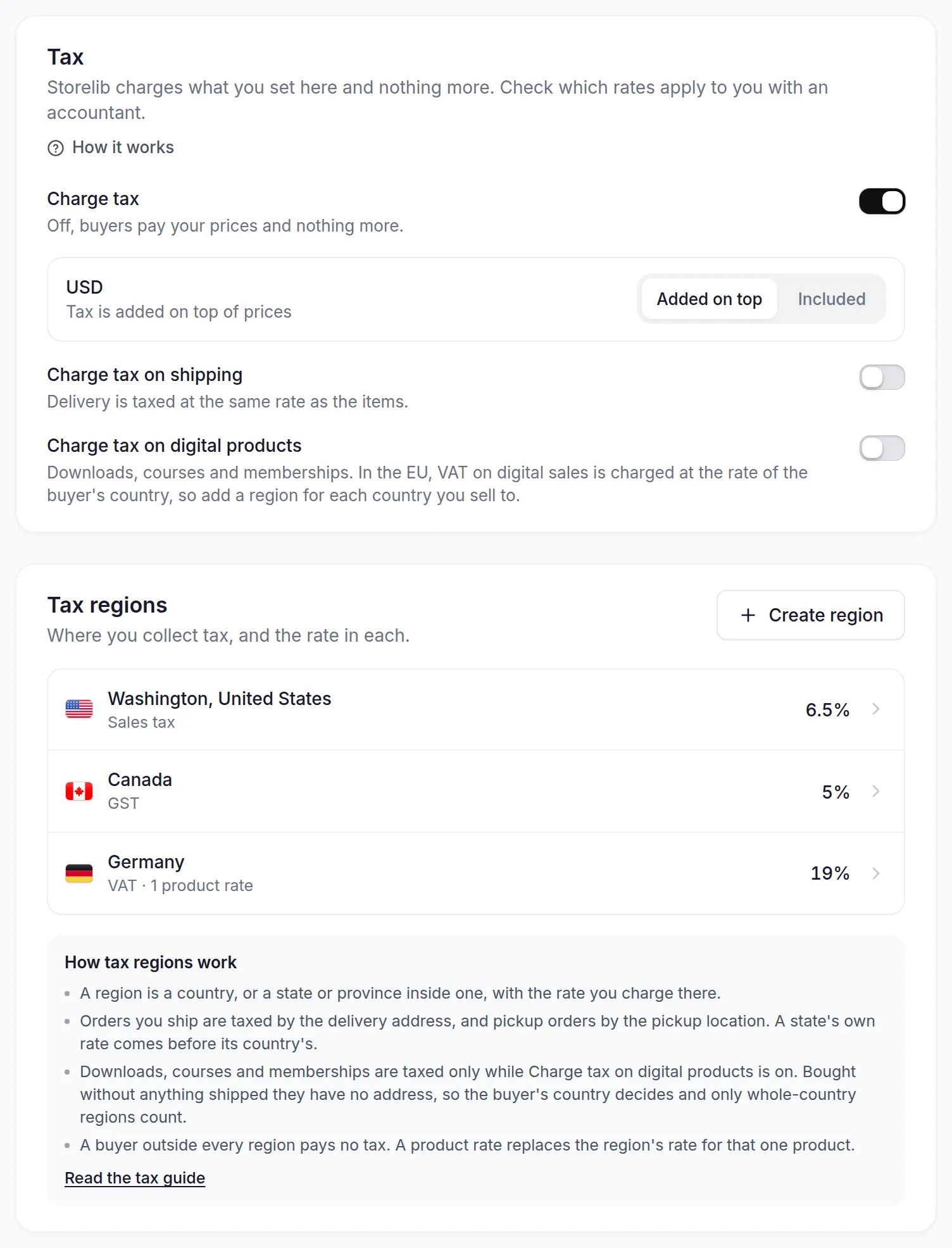
- Turn on Charge tax. While it's off, buyers pay your prices and nothing more.
- Choose Added on top or Included. Added on top is how the US and Canada show prices. Included is how most of Europe, the UK and Australia show them.
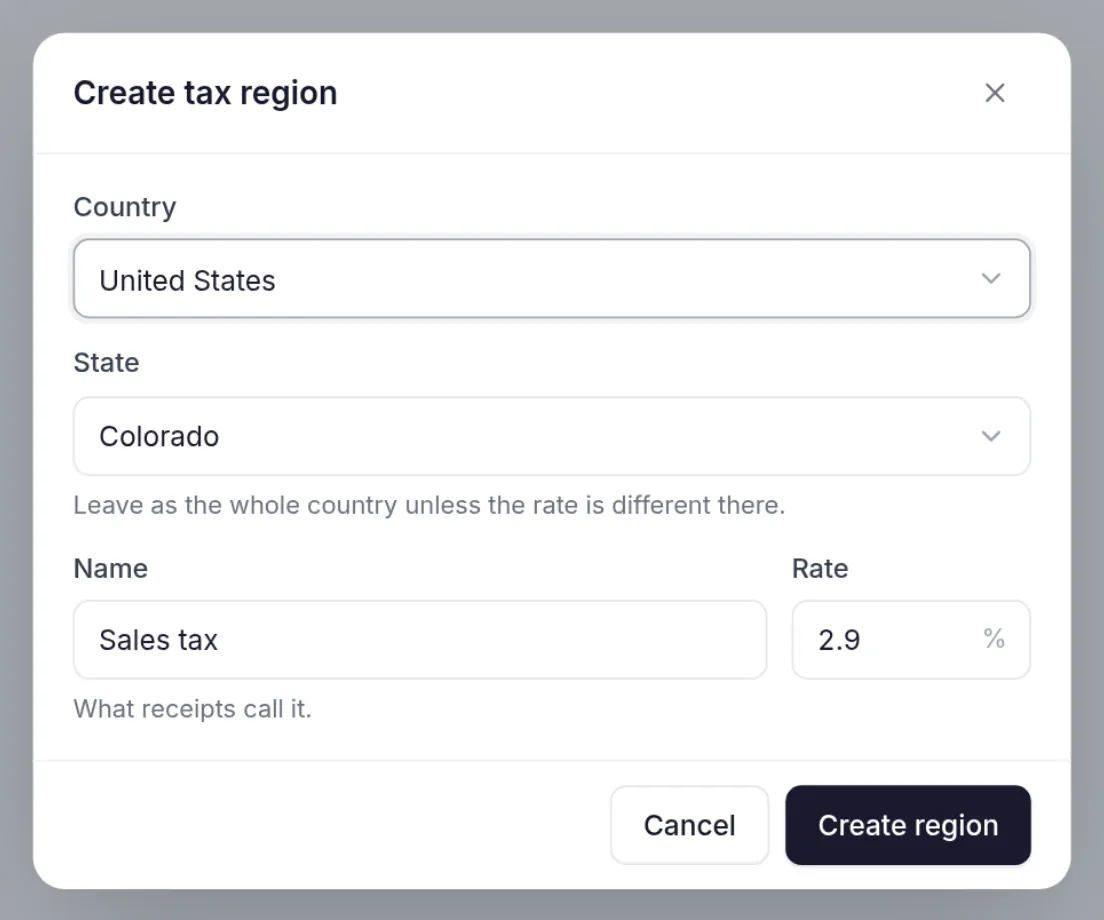
- Under Tax regions, press Create region.
- Pick the country. Pick a state or province only if the rate is different there. Type the rate, and the name receipts use, like VAT or Sales tax.
- Press Create region. Repeat for every place you're registered to collect tax.
- If delivery is taxed where you sell, turn on Charge tax on shipping.
Which rate a buyer pays
At checkout Storelib reads the buyer's shipping address and looks for a region in this order:
- A region for their state or province, if you made one.
- Otherwise the region for their whole country.
- Otherwise no tax at all. A buyer in a country you have no region for pays no tax.
Inside that region, a product with its own rate there uses its own rate. Every other product uses the region's rate.
Added on top or included
| Setting | Price | Rate | Buyer pays | Tax on the receipt |
|---|---|---|---|---|
| Added on top | $100.00 | 8% | $108.00 | $8.00 |
| Included | €100.00 | 19% | €100.00 | €15.97 |
With Included the total never moves. Storelib works out the part of the price that was tax (100 minus 100 divided by 1.19) and shows it on the receipt.
A worked example
A store in Germany with prices included, a Germany region at 19% VAT, a reduced 7% rate on one book, and Charge tax on shipping on. A buyer in Berlin orders a €30 hoodie and that €20 book, with €5 delivery:
| Line | Amount | Rate | Tax inside |
|---|---|---|---|
| Hoodie | €30.00 | 19% | €4.79 |
| Book | €20.00 | 7% | €1.31 |
| Delivery | €5.00 | 19% | €0.80 |
| Total | €55.00 | €6.90 |
The buyer pays €55.00. The order and the receipt show €6.90 of VAT. Delivery always uses the region's rate, never a product's own rate.
Different rates for some products
- Open Settings > Taxes and press the region.
- Under Product rates, choose the product and type its rate, for example 7% for books.
- Save. It applies only in that region.
For a product that should never be taxed, open the product, then Advanced, and turn off Charge tax on this product.
Discounts, free shipping and tips
- A discount code comes off before tax, so tax is on what the buyer actually pays.
- Free shipping means there's no delivery to tax.
- A tip is never taxed.
Digital products in the same store
Downloads, courses and memberships are taxed only while Charge tax on digital products is on. In a cart with something you ship, they're taxed by the delivery address like the rest of the order. Bought on their own there's no address, so the buyer's country decides and only whole-country regions count.
In the EU, VAT on digital sales is charged at the rate of the buyer's country, not yours. If you sell digital products to EU buyers, add a region for each EU country you sell to.
Where tax shows up
- Every checkout shows the tax line before the buyer pays.
- The order in Orders shows the tax on its own line, with the rate used.
- The receipt, the invoice, the order confirmation email and the buyer's order page show it too.
- Changing a rate later never changes orders already paid.
Registrations and exemptions
Add a region only where you're registered or required to collect. Storelib doesn't file or pay tax for you, and doesn't check registration numbers.
With Company invoices on in Settings > Checkout, a buyer can tick Buying for a business at checkout and add the company's name, address and tax number. They go on the invoice, but they don't remove the tax. For a business buyer who is exempt, refund the tax part from the order.
When something looks wrong
| You see | Why | What to do |
|---|---|---|
| No tax at checkout | Charge tax is off, or the buyer's country has no region. | Turn on Charge tax and add a region for that country. |
| Tax on top when your prices already include it | The store is set to Added on top. | Switch to Included. |
| Shipping is not taxed | Charge tax on shipping is off. | Turn it on if delivery is taxed where you sell. |
| A state pays the country rate | There's no region for that state. | Add the state as its own region. |
| One product has no tax | Charge tax on this product is off in its Advanced settings. | Turn it back on. |
| Digital products have no tax | Charge tax on digital products is off. | Turn it on and add the countries you sell to. |
Automatic rates from a tax service aren't available yet. Rates change, so check yours once a year.
Related articles
- What buyers see at checkoutYour website's checkout, step by step: on your own address, with your logo, and the card form inside the page.
- Store details: logo, name, contact email, country and currencyWhat buyers see on receipts, order emails and checkout, where your store is based and the currency it sells in. Set it once in Settings > Store details.
Still stuck? Contact support and a person on the team replies by email. Selling on Storelib? Open a request from your dashboard.