
Locations and inventory
Locations: where your stock lives and ships from
Add your home, studio, warehouse or partner as a location, choose who ships from it, and pick the default.
Updated 1 min read
On this page
A location is any place that holds your stock or ships your orders: your home, a studio, a warehouse, or a partner who ships for you. You have at least one. Most small shops only ever need one.
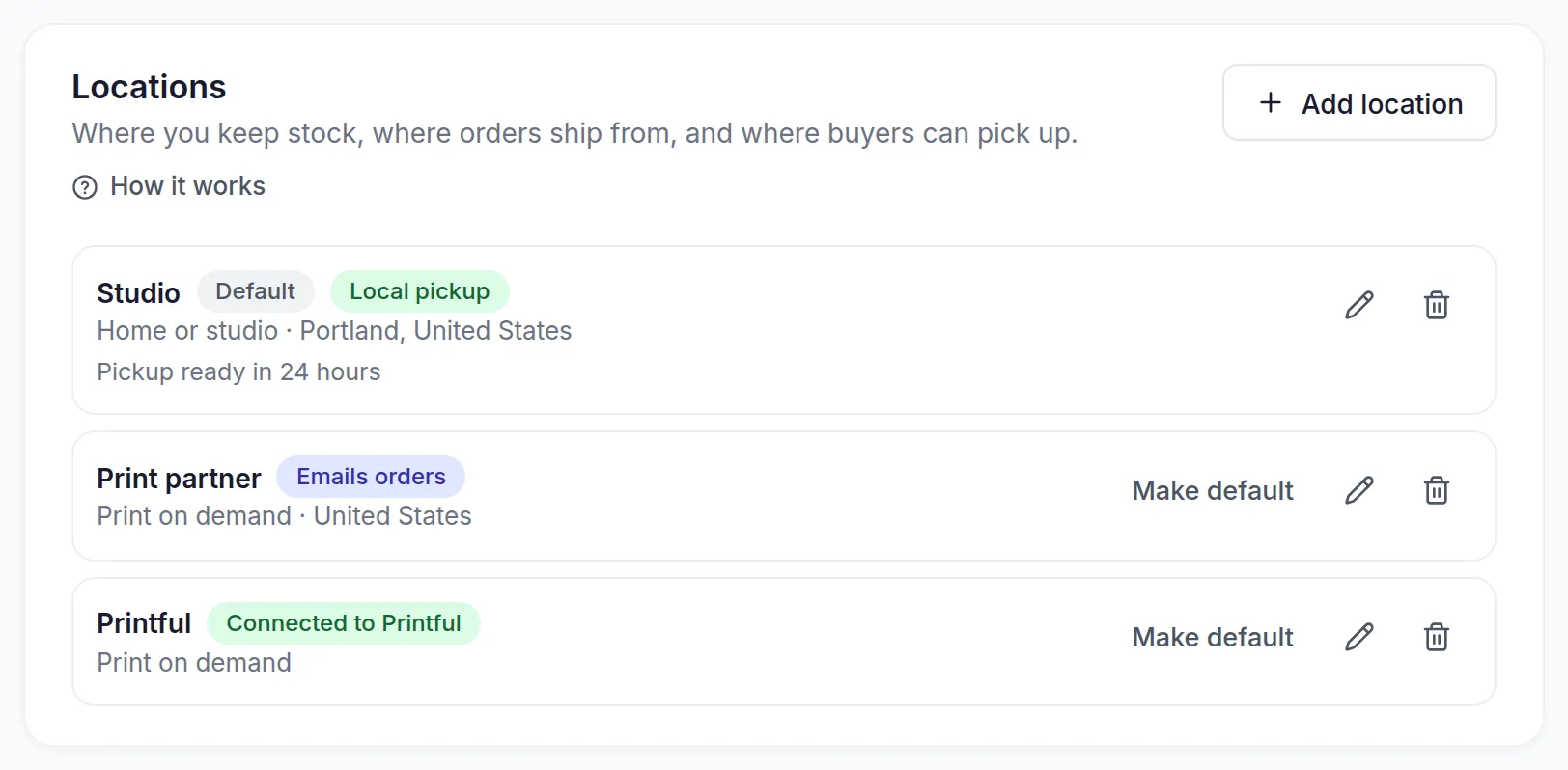
Add a location
- Open Settings and choose Locations.
- Press Add location.
- Give it a name only you see, like Studio, and pick its type.
- Pick the country first, then type the address the way that country writes it.
- Under Who ships the orders?, pick I do, from here for your own place, or A partner: email each order to them and type their orders email.
- Press Add location.
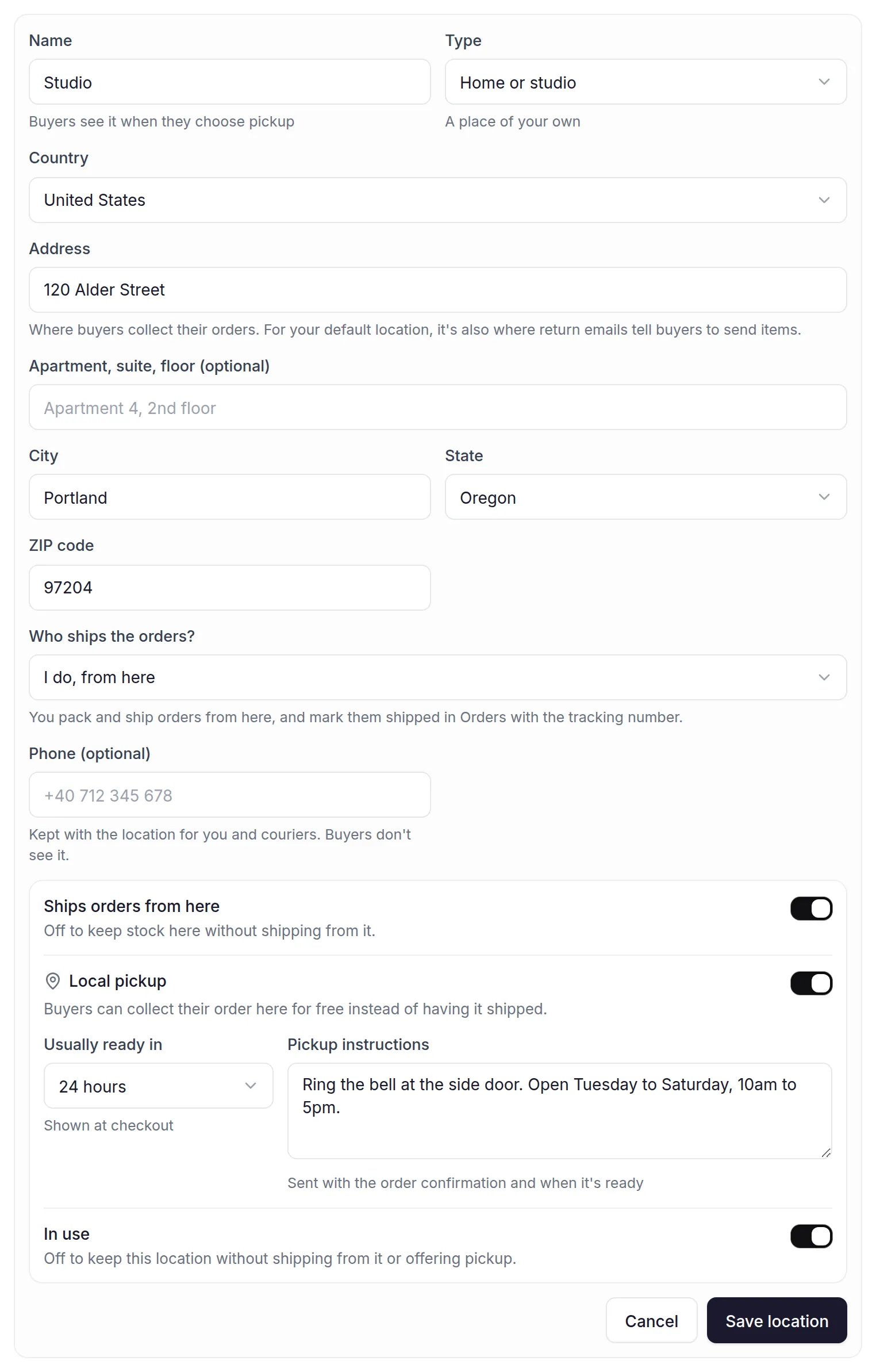
The switches inside a location
| Switch | What it does |
|---|---|
| Ships orders from here | Off keeps stock here without shipping from it. |
| Local pickup | Buyers can collect here for free. |
| In use | Off keeps the location without shipping from it or offering pickup. |
The default location
New orders are assigned to your default location, and its stock goes down there. Its address is also where return emails tell buyers to send items. Press Make default on another location to change it, or pick it in Settings > Store details.
Common mistakes
- A partner with no orders email. Their orders aren't sent anywhere. Add the email in the location.
- Your home as the default with no street address. Return emails need it.
More in Locations and inventory
All physical products articlesRelated articles
Still stuck? Contact support and a person on the team replies by email. Selling on Storelib? Open a request from your dashboard.