
Upsells and bundles
Upsells and bundles: the three kinds of offer
Quantity breaks, bundles and upsells: what each one does for a buyer, where it shows, and how Storelib prices it in the cart and at checkout.
Updated 4 min read
On this page
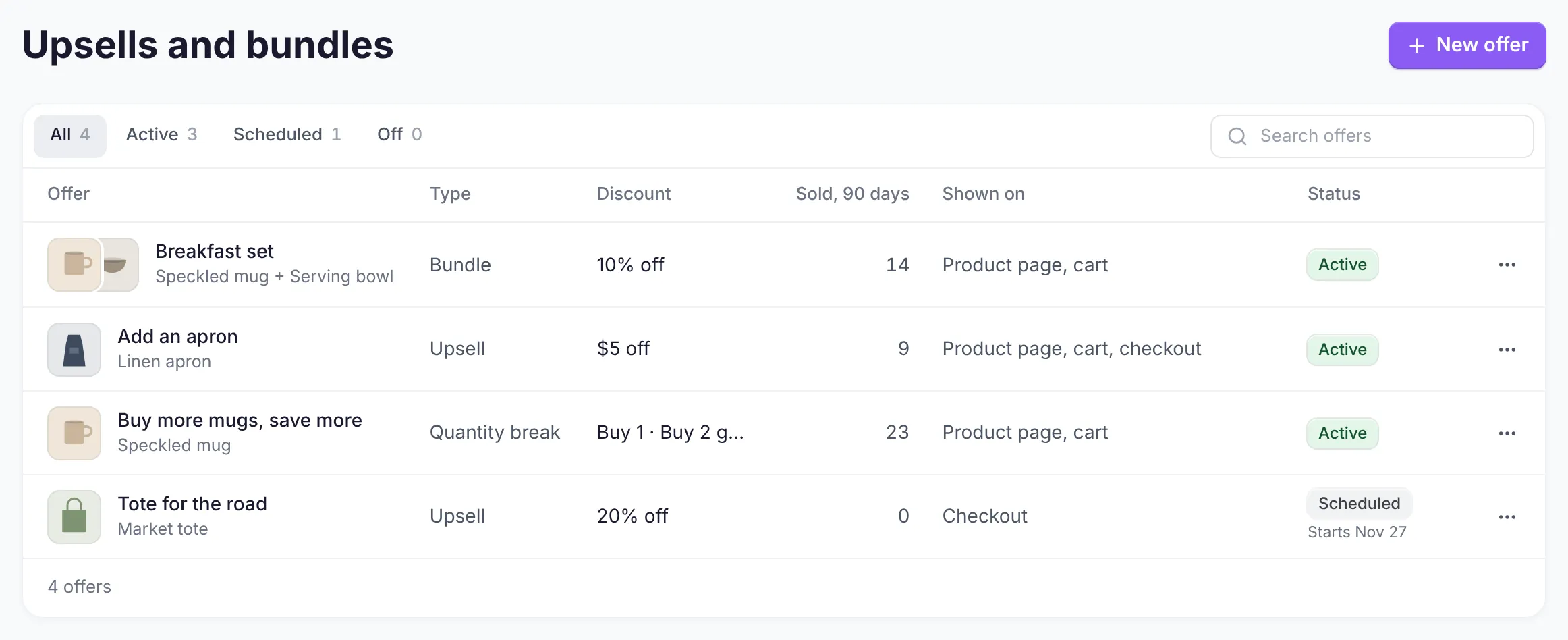
An offer gives a buyer a better price for buying more from you. Open Products > Upsells and bundles in the dashboard. Every offer you make there is read from your store by your website, your cart and your checkout. You don't copy prices anywhere.
| Quantity break | Bundle | Upsell | |
|---|---|---|---|
| What the buyer gets | More of one product for less each, or some free | Two to five products together for less | One more product at a lower price |
| Example | Buy 2 get 1 free | Mug and bowl, 10% off the set | Add an apron, $5 off |
| Where it shows | Product page, cart | Product page, cart | Product page, cart, checkout |
| When it applies | For every block of units that fits a tier | For every complete set in the cart | When the cart holds the products you chose, or anything |
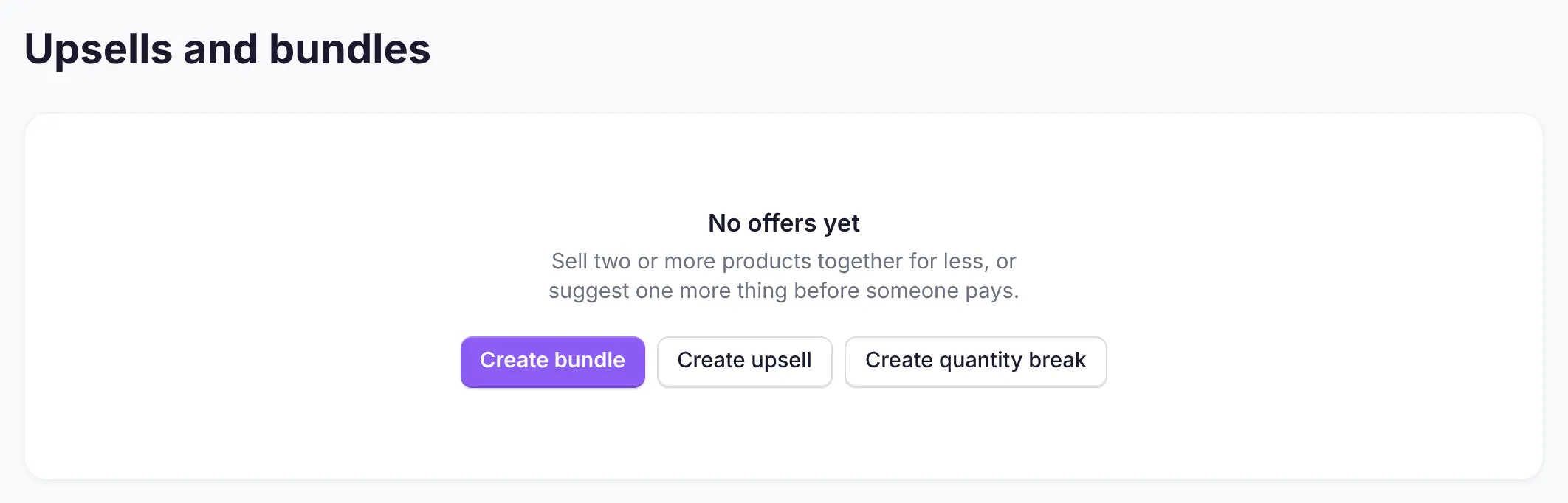
Before your first offer the page has one button for each kind: Create bundle, Create upsell and Create quantity break.
Open, save and go back
- Press an offer's row, or Edit in its menu, and the offer opens in a window over the list (a sheet from the bottom on a phone). New offer asks which kind first, as Add product does: Bundle, Upsell or Quantity break, each with a line on what it does and a small drawing. Pick one and its form opens in the same window; the arrow at the top goes back to the kinds. Create bundle, Create upsell and Create quantity break start on that kind.
- A new offer starts with what most offers need: a name, the products and the discount, each already set to something sensible. Where it shows, the dates, the limit per order and the code rule are under More options, with what is set said in one line. It opens by itself when something there needs fixing.
- The form is one column: the name, the products, the discount (or the tiers), Active, then More options. Under the discount it says what a buyer pays, like The set costs $68.40 instead of $76.00. Cancel and Create (or Save) are at the foot.
- Press Save, or Create for a new offer. Ctrl or Cmd and S works too. The window closes, Upsells and bundles says the offer was saved and highlights its row. On a saved offer, Save stays gray until you change something.
- If something needs fixing, the page says how many things and shows each one under its own field, saying what to do, like Tick 2 to 5 products for the bundle.
- Yellow notes under the discount say what to watch for before you save: a product that is a draft, a tier that costs more per item than the one before it, or another offer on the same products.
- To leave without saving, press Cancel, the X or outside the window. With changes, it asks Discard changes? first, and Keep editing stays where you were.
- Delete is at the foot of a saved offer's window. It asks first, then the offer leaves the list.
Which one to use
- People buy one of something and could use more: a quantity break. See Set up a quantity break.
- Two or more products are used together: a bundle. See Set up a bundle.
- A small extra goes with what's in the cart: an upsell. Pointed at certain products, it's a cross sell. See Set up an upsell.
How it connects to your store
- Offers use your products as they are now: their prices, their options, whether they're published.
- Your website shows them by itself. The product page has a Bundles and upsells block, Featured products, Product spotlight and Product hero sections show them for their products, and the cart and checkout show savings and suggestions. An imported theme shows them once you add its Bundles and upsells block. See Show offers on your website.
- The checkout works out every discount again on Storelib's server from your offers and your prices. A buyer can't change a price in their browser.
- Each order keeps which offer saved what. It's on the receipt, the order and the order emails.
- Discount codes, other currencies and languages work alongside offers. See How offers are priced.
Offers apply in the cart checkout, for downloads and for things you ship alike, as long as they're bought through the cart.
Not the same as a ZIP bundle
A download with six or more files can arrive as one ZIP named after the product, up to 400 MB in all. Storelib makes that ZIP for you. It has nothing to do with offers and changes no price.
More in Upsells and bundles
- Set up a quantity break: buy more, pay less
- Set up a bundle: products bought together for less
- Set up an upsell: one more product at a lower price
- Show offers on your website: product page, cart and checkout
- How offers are priced: codes, currency and language
- Upsells and bundles: common problems and fixes
Related articles
- Set up a bundle: products bought together for lessPut two to five products in a set with a percent or amount off, shown on each product's page with Add all to cart and finished in the cart.
- Set up an upsell: one more product at a lower priceSuggest one product on product pages, in the cart and at checkout when the cart holds the products you choose, with a percent or amount off.
- Show offers on your website: product page, cart and checkoutThe Bundles and upsells block, Featured products and Product spotlight, an imported theme's block, and what the cart and checkout show by themselves.
- How offers are priced: codes, currency and languageWhich offer wins when two want the same item, how offers and discount codes add up, and what happens in another currency or language.
Still stuck? Contact support and a person on the team replies by email. Selling on Storelib? Open a request from your dashboard.