
Upsells and bundles
How offers are priced: codes, currency and language
Which offer wins when two want the same item, how offers and discount codes add up, and what happens in another currency or language.
Updated 3 min read
On this page
One offer per item
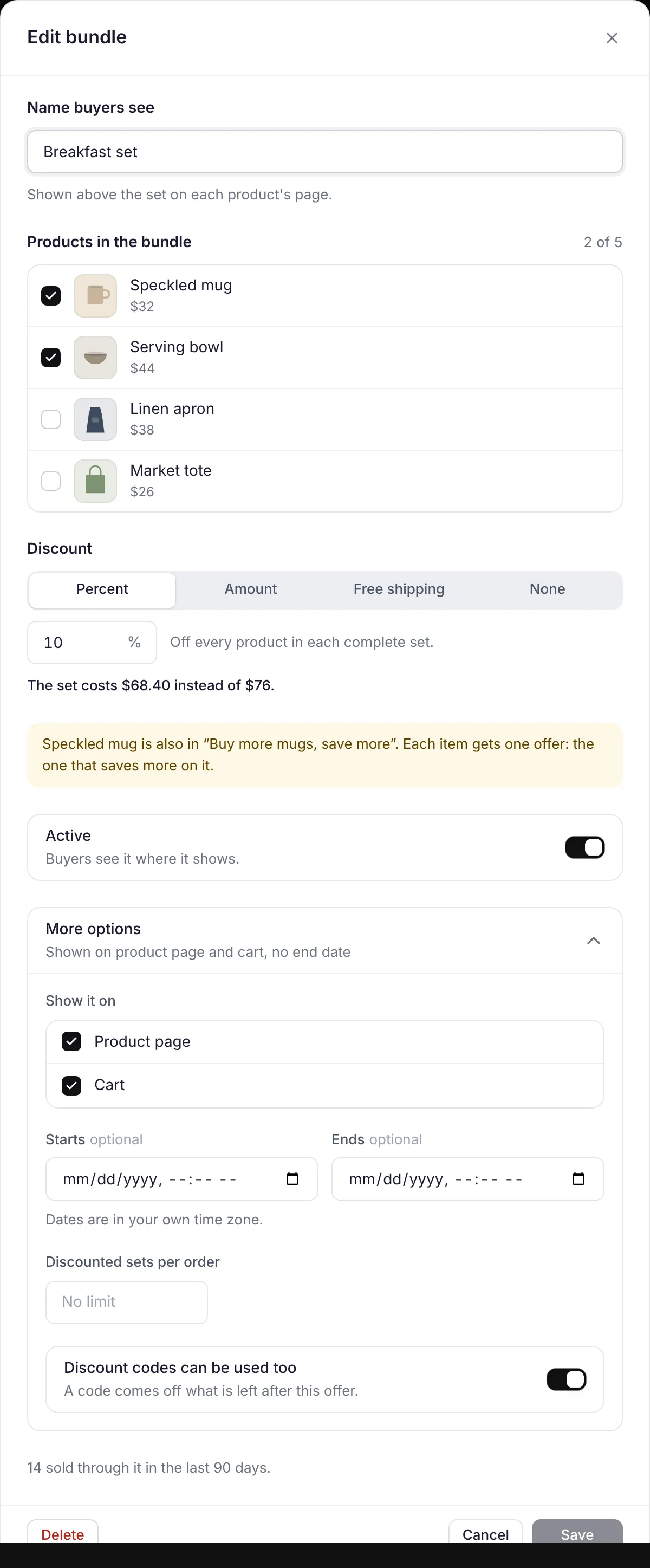
An item in the cart gets one offer at most. When a bundle and a quantity break both want the same mug, the buyer gets whichever saves more on that mug, and a tie goes to the quantity break. A bundle takes the units the quantity break saves least on first, so the two meet only when they have to.
Bundles apply before upsells, and among them, in the order of your list. Use Move up and Move down in an offer's menu to change it. An item an earlier offer took isn't discounted again.
Offers and discount codes
- Discount codes can be used too is on for every new offer. The offer comes off first, and the code comes off what's left.
- Turn it off and a buyer with a code gets whichever saves more on the whole order: the code, or the offer. When the offer wins, checkout says the code can't be used with that offer, which already saves more on this order.
- Nothing ever takes an item below zero.
Dates
Under More options, Starts and Ends are optional. Before the start an offer is Scheduled, after the end it's Ended: either way it neither shows nor applies. Turn an offer off without deleting it: Turn off in its menu in the list, or the Active switch in its window, then Save. Deleting stops it at once, and orders already placed keep their discount.
Currency
- You type amounts in your store's currency, set in Settings.
- A visitor shopping in another currency sees the offer's prices converted, the same way the product prices are, and checkout charges what they saw.
- Change your store's currency and the fixed amounts in your offers are converted with it. An offer that was open while it changed won't save: Your store currency changed. Reload to see the converted prices.
Language
The words Storelib writes around an offer follow your website's language: This item, Together, Add all to cart, Add, a price each, the cart's suggestions and savings, and the checkout's Add to your order. A tier left without a label, like Buy 2 get 1 free, is said in the visitor's language too, with its amount in their currency.
To change those words, open Translate (Settings > Languages & Currency, a language's menu, Review and edit). The product page, Featured products, Choose options and cart words are under Shop words, and the checkout's under Checkout.
The words you type for an offer (its name, a tier's own label and its badge) are shown as you typed them, in every language. Write them in the language most of your buyers read. Button words you type in the Product section's Bundles and upsells block are translated with the rest of the page.
On the order
Each order line keeps which offer saved what, by the name the checkout showed. The receipt and the order show those savings, and Upsells and bundles counts the units each offer sold in its Sold, 90 days column.
More in Upsells and bundles
- Upsells and bundles: the three kinds of offer
- Set up a quantity break: buy more, pay less
- Set up a bundle: products bought together for less
- Set up an upsell: one more product at a lower price
- Show offers on your website: product page, cart and checkout
- Upsells and bundles: common problems and fixes
Related articles
- Upsells and bundles: the three kinds of offerQuantity breaks, bundles and upsells: what each one does for a buyer, where it shows, and how Storelib prices it in the cart and at checkout.
- CouponsDiscount codes by percentage or fixed amount, with dates, limits and a minimum spend.
- Sell in more currenciesShow visitors in the countries you choose your prices in their own currency, converted at the day's rate, and let them pay in it.
- Set up a quantity break: buy more, pay lessGive one product, or every product in a collection, tiers like Buy 2 get 1 free or 4 for 30% off, shown as choices on the product page.
Still stuck? Contact support and a person on the team replies by email. Selling on Storelib? Open a request from your dashboard.