
Upsells and bundles
Set up an upsell: one more product at a lower price
Suggest one product on product pages, in the cart and at checkout when the cart holds the products you choose, with a percent or amount off.
Updated 3 min read
On this page
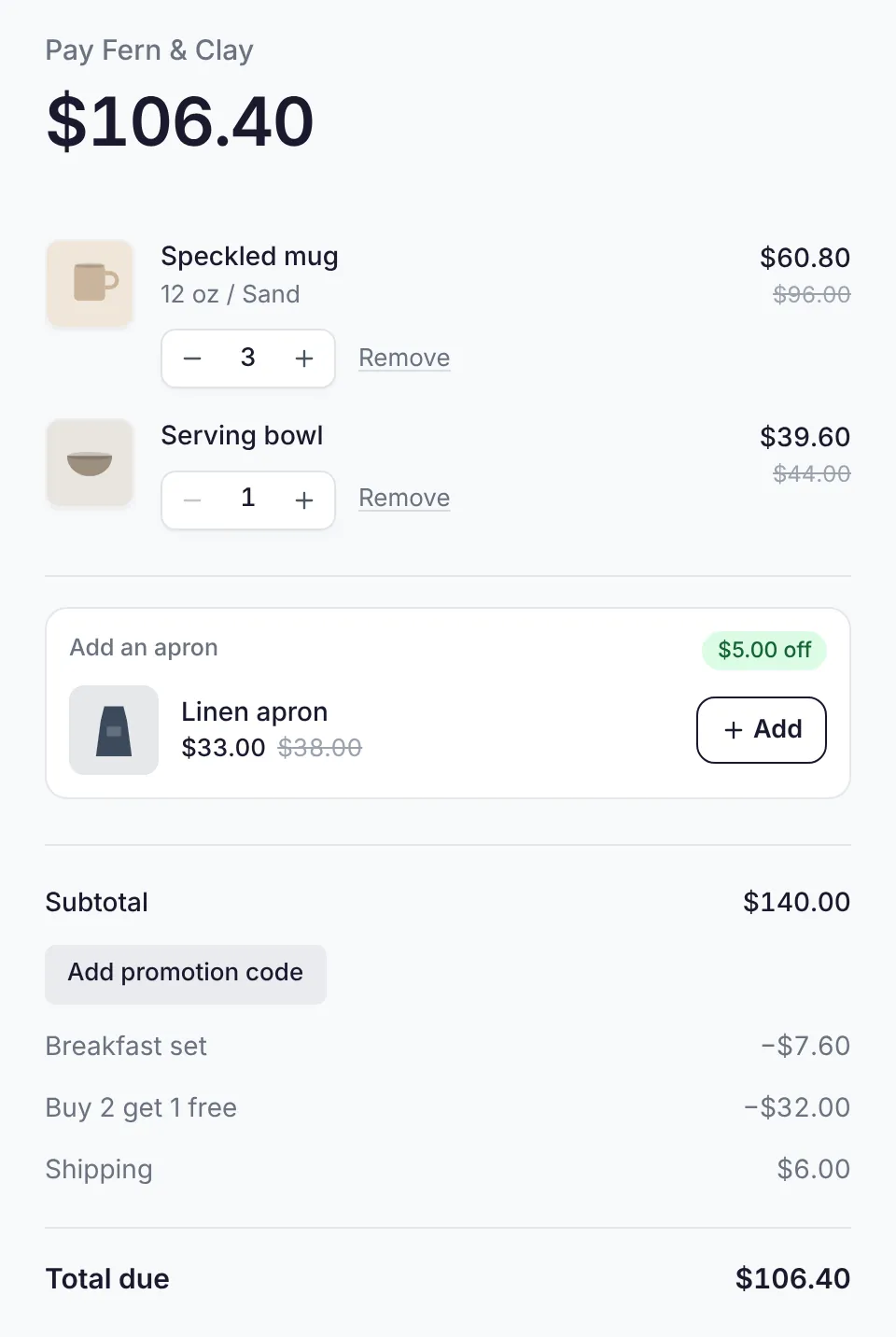
An upsell suggests one product to someone already buying, at a lower price. It shows on a product page under the buy buttons, in the cart, and at checkout under Add to your order. One press adds it, and the checkout takes the discount off while the cart still qualifies.
Make an upsell
- Open Products > Upsells and bundles and press New offer (or Create upsell).
- Pick Upsell.
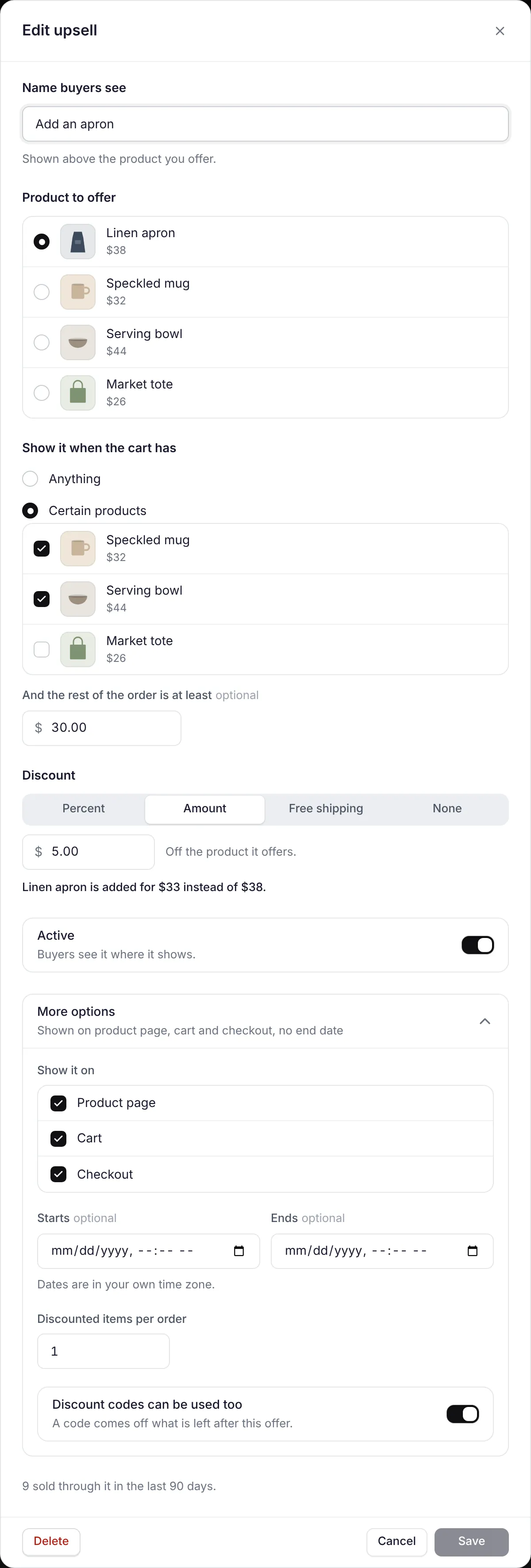
- Type the Name buyers see. It's the line above the product, like Add an apron.
- Under Product to offer, pick one product.
- Under Show it when the cart has, choose Anything, Certain products, or A collection (when you have collections), and tick the ones that should bring it up.
- If you want a minimum, fill in And the rest of the order is at least. The product you offer doesn't count toward it.
- Choose the Discount: Percent or Amount off the product it offers, Free shipping on the whole order once it's added (where selling things that ship is available), or None to suggest it at its own price.
- Product page, Cart and Checkout are all ticked. To change that, open More options and use Show it on.
- Press Create. You're back on Upsells and bundles, with the new upsell in the list.
Upsell or cross sell
They're the same offer. Anything suggests the product to every cart. Certain products or A collection makes it a cross sell: an apron for people buying mugs, a case for people buying a camera. On a product page, an upsell shows only on the pages of the products that bring it up (every page, with Anything).
Where buyers see it
- Product page: under the buy buttons, with its price and Add. Up to two upsells per page.
- Cart: in the cart drawer and on the cart page, with Add. Up to three at once.
- Checkout: under the order's lines, as Add to your order. A product with options gets its choice right there.
- It isn't suggested once its product is in the cart, and never to a cart with nothing else in it.
Limits
- By default one unit of the product gets the discount. Change Discounted items per order under More options for more.
- The discount stays only while the cart still has what brought the upsell up. Remove the mug and the apron goes back to its own price.
- A pay what you want product can be offered, but its price is never discounted.
More in Upsells and bundles
- Upsells and bundles: the three kinds of offer
- Set up a quantity break: buy more, pay less
- Set up a bundle: products bought together for less
- Show offers on your website: product page, cart and checkout
- How offers are priced: codes, currency and language
- Upsells and bundles: common problems and fixes
Related articles
- Upsells and bundles: the three kinds of offerQuantity breaks, bundles and upsells: what each one does for a buyer, where it shows, and how Storelib prices it in the cart and at checkout.
- Upsells and bundles: common problems and fixesAn offer that doesn't show, doesn't apply, or applies differently than you expected, and what to change.
- Set up a quantity break: buy more, pay lessGive one product, or every product in a collection, tiers like Buy 2 get 1 free or 4 for 30% off, shown as choices on the product page.
- How offers are priced: codes, currency and languageWhich offer wins when two want the same item, how offers and discount codes add up, and what happens in another currency or language.
Still stuck? Contact support and a person on the team replies by email. Selling on Storelib? Open a request from your dashboard.