
Upsells and bundles
Show offers on your website: product page, cart and checkout
The Bundles and upsells block, Featured products and Product spotlight, an imported theme's block, and what the cart and checkout show by themselves.
Updated 5 min read
On this page
On Storelib's own theme you don't place offers by hand. Each offer has Show it on in its editor, and your website reads that. On an imported theme you add one block. This is where each place comes from.
| Place | What shows | Where it comes from |
|---|---|---|
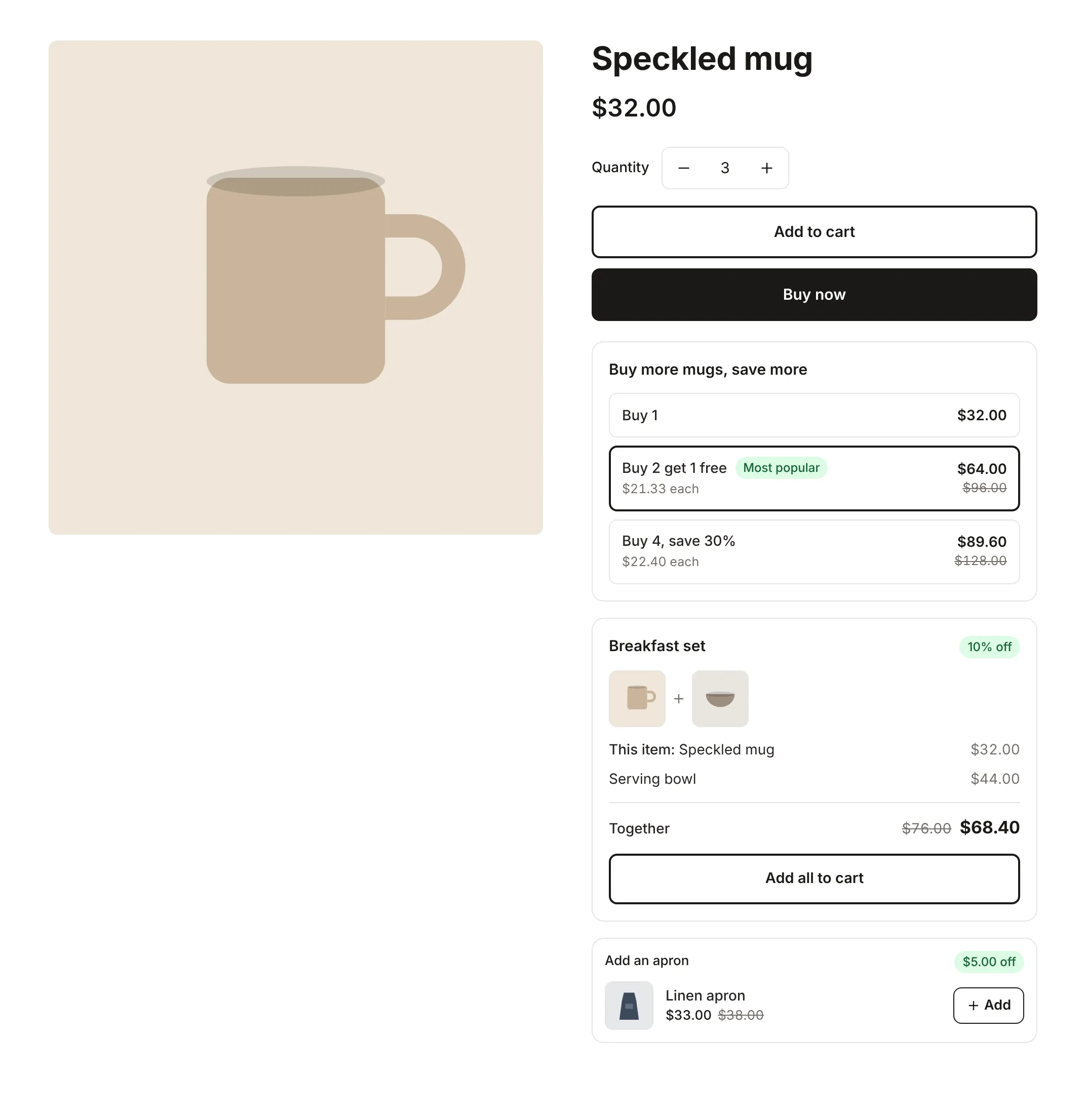
| Product page | Quantity break tiers, bundles with this product, upsells this product brings up | The Bundles and upsells block in the Product section |
| Featured products, Product spotlight, Product hero | The same, for each product the section shows | The section itself, while Show bundles and upsells is on |
| An imported theme | The same, on a product page or a Featured product | The Bundles and upsells block, once you add it |
| Cart drawer | Each saving above the subtotal, upsells to add, bundles to finish | The cart itself, on your live website |
| Cart page | The same as the cart drawer | The cart page itself |
| Checkout | Each saving in the summary, upsells under Add to your order | The checkout itself |
| Your creator page | Bundles under the buy button, as Buy together | The product page at storelib.com/you |
The Bundles and upsells block
Storelib's Product section has a block called Bundles and upsells. A product page already gets it after Delivery and pickup (or after the buy buttons), so an offer shows without you adding anything. It draws nothing on a product no offer names.
- Open Website and the editor, and go to a product page.
- In the sidebar, open the Product section and find Bundles and upsells among its blocks.
- Drag it to move it. To put it back after removing it, press Add block in the Product section and choose Bundles and upsells. A section has one at most.
- Press the block to change its settings, then publish the website.
| Setting | What it does |
|---|---|
| Quantity breaks, Bundles, Upsells | Turn each kind off on this page without turning the offer off. |
| Bundle button | The words on the bundle's button. Add all to cart by default. |
| Upsell button | The words on the upsell's button. Add by default. |
| Button style | Outline or Filled. |
| Heading, Text, Price, Border | Colors, following the section's color scheme until you pick your own. |
| Saving background, Saving text | The colors of the saving badge, like 10% off. |
| Button background, Button text | The button's colors. |
| Space above, Space below | The room above and below the block. |
In the editor, the builder's stand in product shows a sample quantity break, bundle and upsell, so you can set the colors before you have offers. A real product with no offer shows one quiet line instead: No bundle, quantity break or upsell shows this product yet.
Featured products, Product spotlight and Product hero
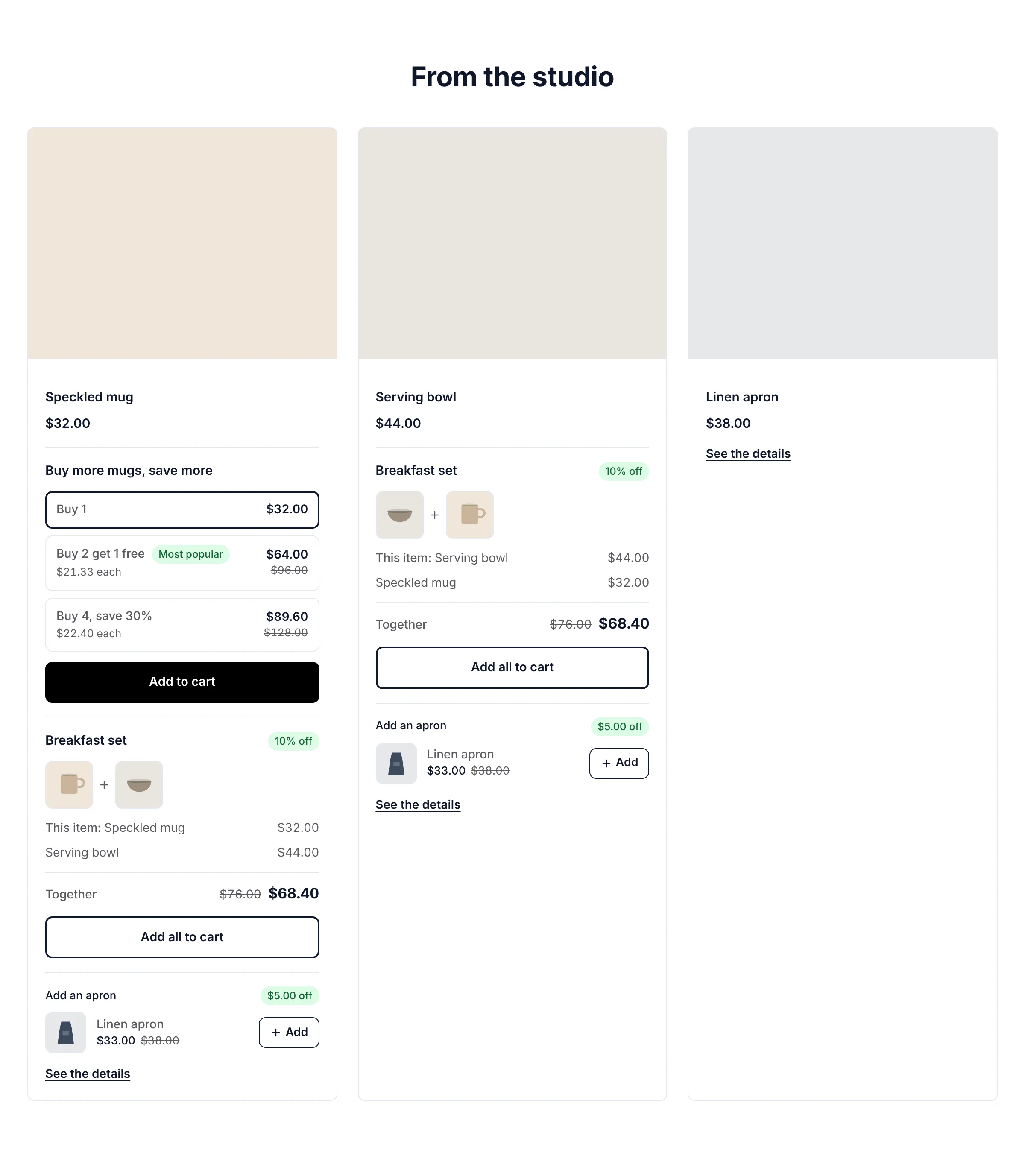
Storelib's Featured products section shows each product's offers on its card, under the price. Product spotlight and Product hero show their product's offers under the button. They show offers with Product page ticked under Show it on, at the same prices the cart and checkout charge, in the visitor's currency.
- Quantity break: the tiers, with Add to cart under them. Picking a tier sets how many Add to cart puts in the cart.
- Bundle: the set and Add all to cart, which puts the whole set in the cart.
- Upsell: the product and Add.
- These sections have no option picker and no personalization fields. A product with options to pick, or one that asks for a required answer like a name to engrave, shows Choose options instead, which opens its page. The same goes for a set or an upsell with a product that asks for a required answer.
- The section's own button still opens checkout for one. A tier or a set goes in through Add to cart or Add all to cart.
- To hide them, turn off Show bundles and upsells in the section's settings.
On an imported theme
An imported theme gets a Bundles and upsells block of its own. It isn't placed for you: add it where you want offers to show.
- Open Website and the editor, and go to a product page, or the page with a Featured product section.
- In the sidebar, open the theme's product section or its Featured product section and press Add block.
- Choose Bundles and upsells. A section has one at most.
- Press the block to change its settings, then publish the website.
Its settings are Quantity breaks, Bundles and Upsells, to turn each kind off, and Bundle button and Upsell button for the buttons' words. Picking a tier sets the theme's own quantity box, and Add all to cart puts the set in the cart with the option picked in the theme's form. A theme whose product section takes no blocks from Add block has no place for it.
Cart and checkout
The cart drawer, the cart page and the checkout have no offer settings. An offer shows there when Cart or Checkout is ticked under Show it on. The cart asks for the savings again each time it changes, and the checkout works them out again before payment.
Sections that don't show offers
- Product grid, product list and carousel sections show a product's card, not its offers. Link the card to the product page, or use Featured products.
- A product page you built with your own section instead of the Product section shows no offers until you add a Product section.
More in Upsells and bundles
- Upsells and bundles: the three kinds of offer
- Set up a quantity break: buy more, pay less
- Set up a bundle: products bought together for less
- Set up an upsell: one more product at a lower price
- How offers are priced: codes, currency and language
- Upsells and bundles: common problems and fixes
Related articles
- Upsells and bundles: the three kinds of offerQuantity breaks, bundles and upsells: what each one does for a buyer, where it shows, and how Storelib prices it in the cart and at checkout.
- Upsells and bundles: common problems and fixesAn offer that doesn't show, doesn't apply, or applies differently than you expected, and what to change.
- Build and publish your websitePick a theme, edit its sections and publish to yourname.storelib.com.
- Set up a quantity break: buy more, pay lessGive one product, or every product in a collection, tiers like Buy 2 get 1 free or 4 for 30% off, shown as choices on the product page.
Still stuck? Contact support and a person on the team replies by email. Selling on Storelib? Open a request from your dashboard.