
Website and integrations
Gelato and CJ Dropshipping: match products, send orders
Connect Gelato or CJ Dropshipping with an API key, match each variant to theirs, choose drafts or paid orders, and get tracking and stock back.
Updated 3 min read
On this page
Gelato prints each product near your buyer. CJ Dropshipping sends products from its own warehouses. Connect one and every paid order for its location goes to it by itself, and its tracking number comes back to the order.
Connect it with your API key
- In Gelato, open Developer, then API keys, and make a key. In CJ, open My CJ, then Authorization, then API, and copy your API key. It looks like CJ1234567@api@ and a long code.
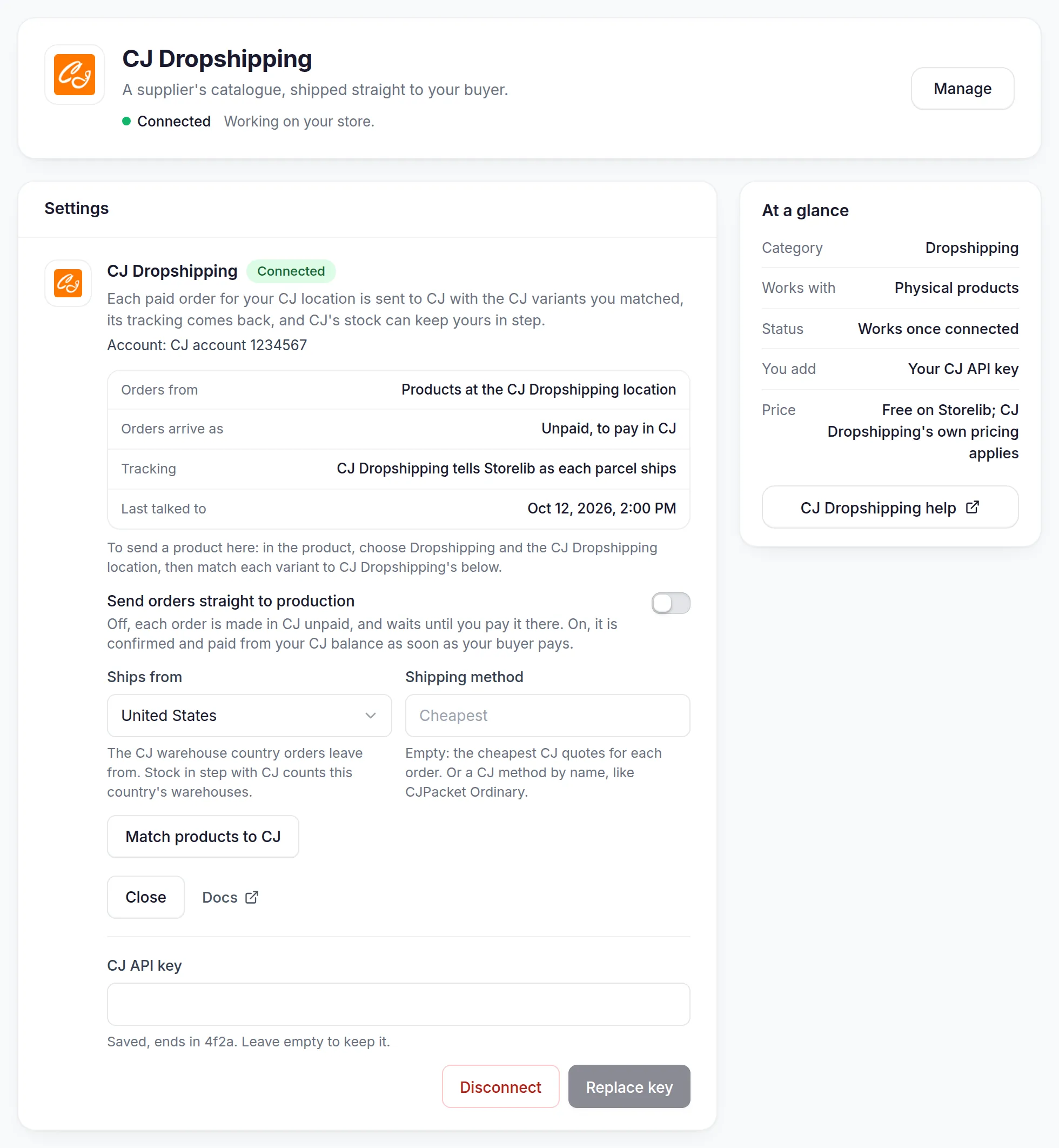
- In Storelib, open Settings, then Integrations, and press Gelato or CJ Dropshipping.
- Press Connect, paste the key and press Connect again. Storelib checks it with them first, and a key they refuse is not saved.
- The page says Connected. The key is stored encrypted and only its last four characters are shown.
Connecting makes a location named Gelato or CJ Dropshipping in Settings, Locations. In a product, choose Print on demand and the Gelato location, or Dropshipping and the CJ Dropshipping location.
Match each variant to theirs
Gelato and CJ don't know your SKUs, so you tell Storelib which of their products each variant is. Press Match products on the connected card. Products sold from their location are listed first.
- CJ: press Match, search CJ by SKU or by words, open a product and press Choose on its variant. A variant whose SKU is exactly the same as a CJ variant's goes without a match, because CJ confirms the SKU when the order is sent.
- Gelato: press Match, paste the Gelato product UID for that size and colour from Gelato's catalogue, and the https address of your print file. Storelib checks the product with Gelato before saving.
- Anything not matched is never sent on a guess. The order says which item, so you can match it and send that order yourself.
Drafts, or straight to production
Gelato: each order waits as a draft until you approve it in Gelato, and Gelato charges you then. CJ: each order is made unpaid, and you pay it in CJ. Turn on Send orders straight to production to have Gelato make it at once, or CJ confirm it and pay it from your CJ balance. If your CJ balance is too low, the order says so and waits in CJ.
Gelato orders go by the shipment method you choose on the card. CJ orders go by the cheapest method CJ quotes for that order, unless you type one, from the warehouse country you choose.
Tracking comes back
- CJ tells Storelib when an order ships and its tracking moves. Storelib then reads the order from CJ with your key.
- Gelato's updates are set up in Gelato: the card shows an address to paste in Gelato, under Developer, Webhooks, for order status and tracking code updates. Until the first one arrives, Storelib checks Gelato every few hours.
- The carrier and tracking number land on the order, and your buyer gets the shipping email from your store, then the delivery email.
- If either is busy, Storelib tries again a little later. Nothing is sent twice.
Stock from CJ
On a matched CJ product, turn on Keep stock in step with CJ. Its stock at the CJ Dropshipping location then follows CJ's warehouses in the country you ship from: read when you turn it on, when CJ says it changed, and every six hours. With stock tracking on, the product sells out when CJ runs out. Each change is in the product's stock history as Synced from provider. Leave it off and the CJ Dropshipping location only has the stock you count there yourself, so turn off Track stock on a product you don't want to count.
More in Website and integrations
- Sell physical products on your website
- Bring your store's theme to Storelib
- Integrations: analytics, pixels and fulfilment partners
- Printful and Printify: send orders and get tracking back
Related articles
- Integrations: analytics, pixels and fulfilment partnersAdd Google Analytics, Meta, TikTok and other pixels to your website, send orders to Printful, Printify or your own system, and see what's next.
- Who ships it: fulfilment typesShip it yourself, or use a fulfillment center, a supplier or print on demand: one answer for the store, and any product can have its own.
- Tracking and the buyer's order pageHow tracking links are made, how parcels are followed for you, how a partner adds tracking, and the order page where buyers follow their parcel.
- Sell physical products on your websiteYour products, the cart and checkout are built into every Storelib website. Here's how to set them up and check them.
Still stuck? Contact support and a person on the team replies by email. Selling on Storelib? Open a request from your dashboard.