
Orders and tracking
Shipping labels and every way to fulfill an order
Buy and print a label from the order, ship by hand with or without tracking, send part of an order, deliver locally, and void a label.
Updated 9 min read
On this page
Every paid order that ships has an Unfulfilled card on its order page with a Fulfill items button. What you do from there depends on who sends the parcel and how. This page covers all of it, from buying a label in Storelib to a parcel you hand over yourself.
The ways an order gets fulfilled
| How it ships | What you do in Storelib | What the buyer gets |
|---|---|---|
| You post it with postage bought elsewhere | Fulfill items, pick the carrier, type the tracking number | The shipping email with a Track your package button |
| You buy the label in Storelib | Fulfill items, Buy a label, pick a rate, print | The same email. The tracking number goes on by itself |
| You post it without tracking | Fulfill items, choose Local delivery / no tracking | An email that it's on its way, with no tracking link |
| You deliver it yourself (Local delivery) | Fulfill items when it leaves, Mark as delivered when it's handed over | An email that you're bringing it |
| The buyer collects it (Local pickup) | Mark ready for pickup, then Mark picked up | An email with your pickup address and instructions |
| A warehouse, supplier or print partner ships it | Usually nothing: they get the order and send the tracking back | The shipping email when their tracking arrives |
| You print labels in ShipStation | Nothing in Storelib: the order goes to ShipStation | The shipping email when ShipStation reports the tracking |
Who ships each product is set on the product and in Settings. See Fulfillment methods.
Before your first label
- Open Settings and choose Integrations. Open Shippo or EasyPost, paste your API key from that service and press Connect. A test key (shippo_test_ for Shippo, EZTK for EasyPost) buys free sample labels, so you can try everything first.
- Check your location has its full address: Settings > Locations. The label's From address is read from it.
- Save the boxes you use: Settings > Shipping and delivery, under Packages. Mark the one you use most as the default.
- Give each product its weight on the product page. Storelib adds up the items and the empty box for you.
Labels are charged to your Shippo or EasyPost account at their rates. Storelib adds nothing, and the buyer never pays for your label.
Buy a label
- Open Orders and press the order.
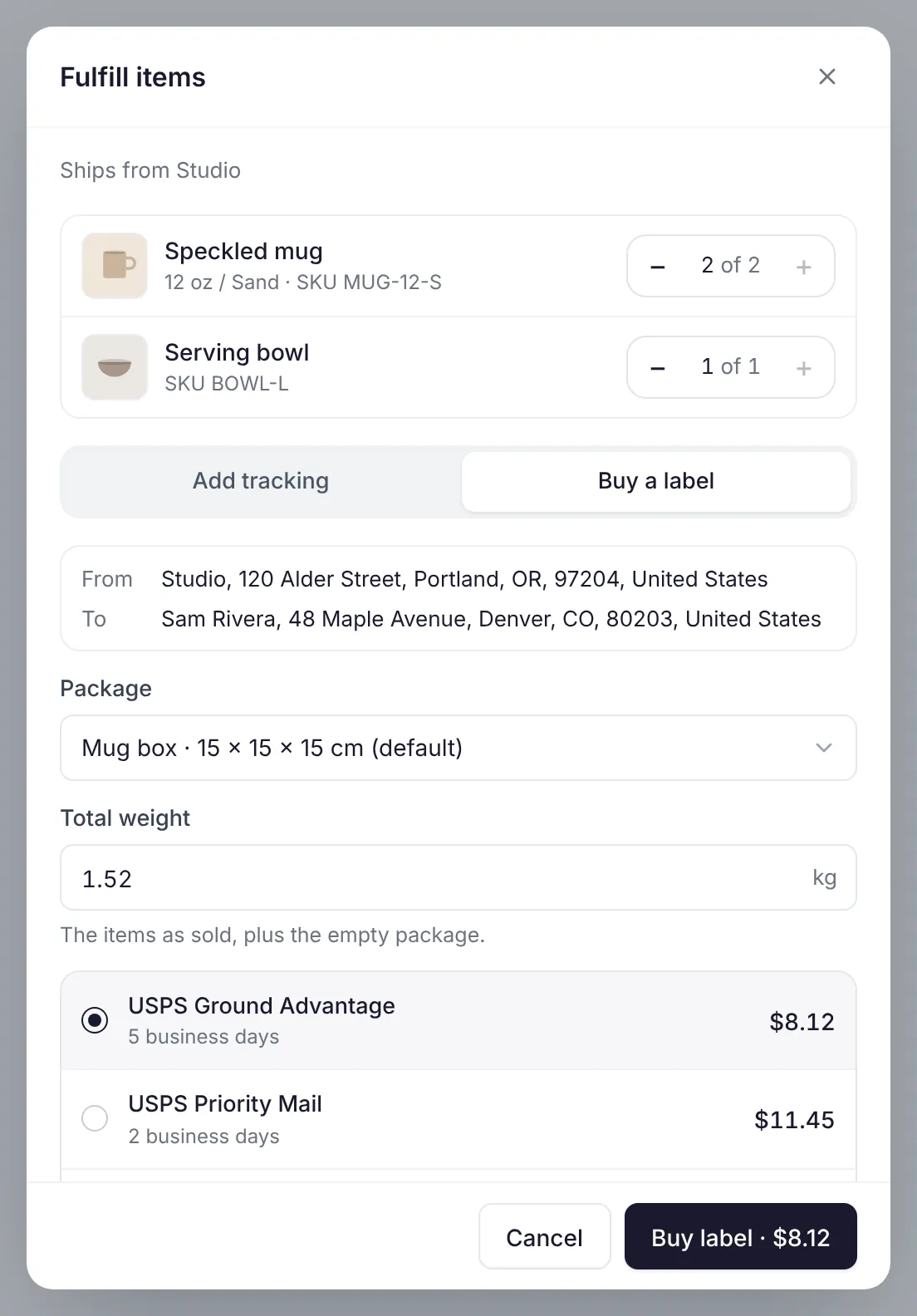
- On the Unfulfilled card, press Fulfill items.
- Check the quantities. Lower one to send only part of the order now.
- Press Buy a label at the top of the window.
- Check From and To. Pick the package, or choose Custom size and type the box's size.
- Check the total weight. It follows the items you chose, plus the box. Weighed it yourself? Type the real weight.
- Press Get rates. The rates come back cheapest first. If Shippo or EasyPost finds something wrong with the address, it's shown above them.
- Pick a rate and press Buy label.
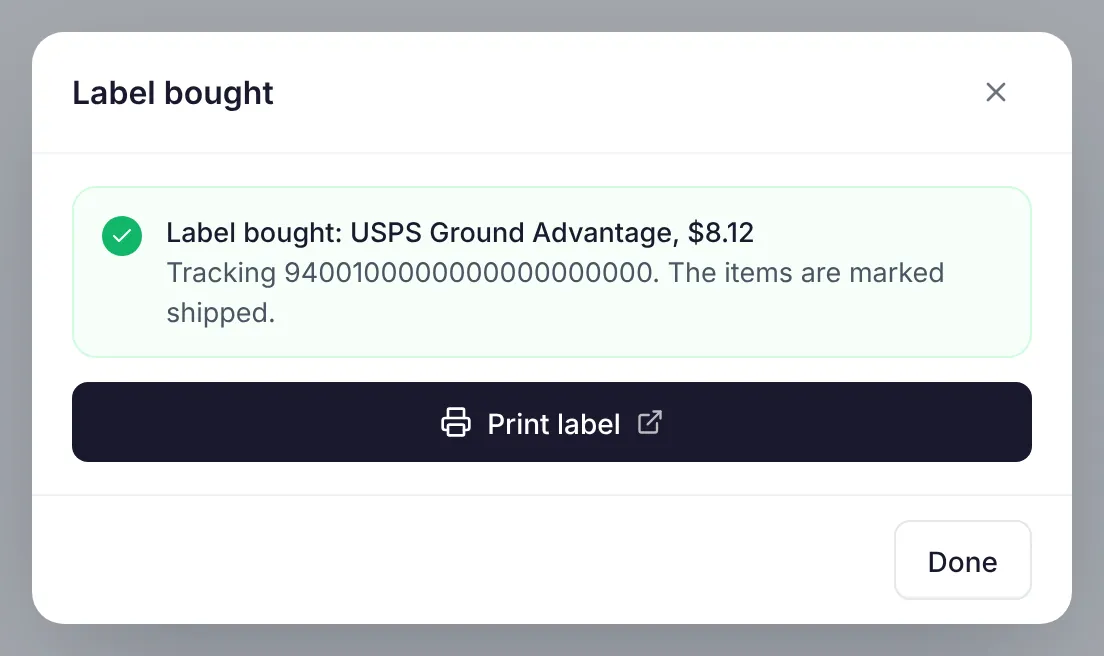
What happens next: the label opens as a PDF in a new tab, ready to print on a 4 by 6 inch label printer or plain paper. The items are marked shipped with the label's carrier and tracking number, the stock leaves your shelf, and the buyer gets the shipping email if Send shipment details to the buyer is on.
Print a label again
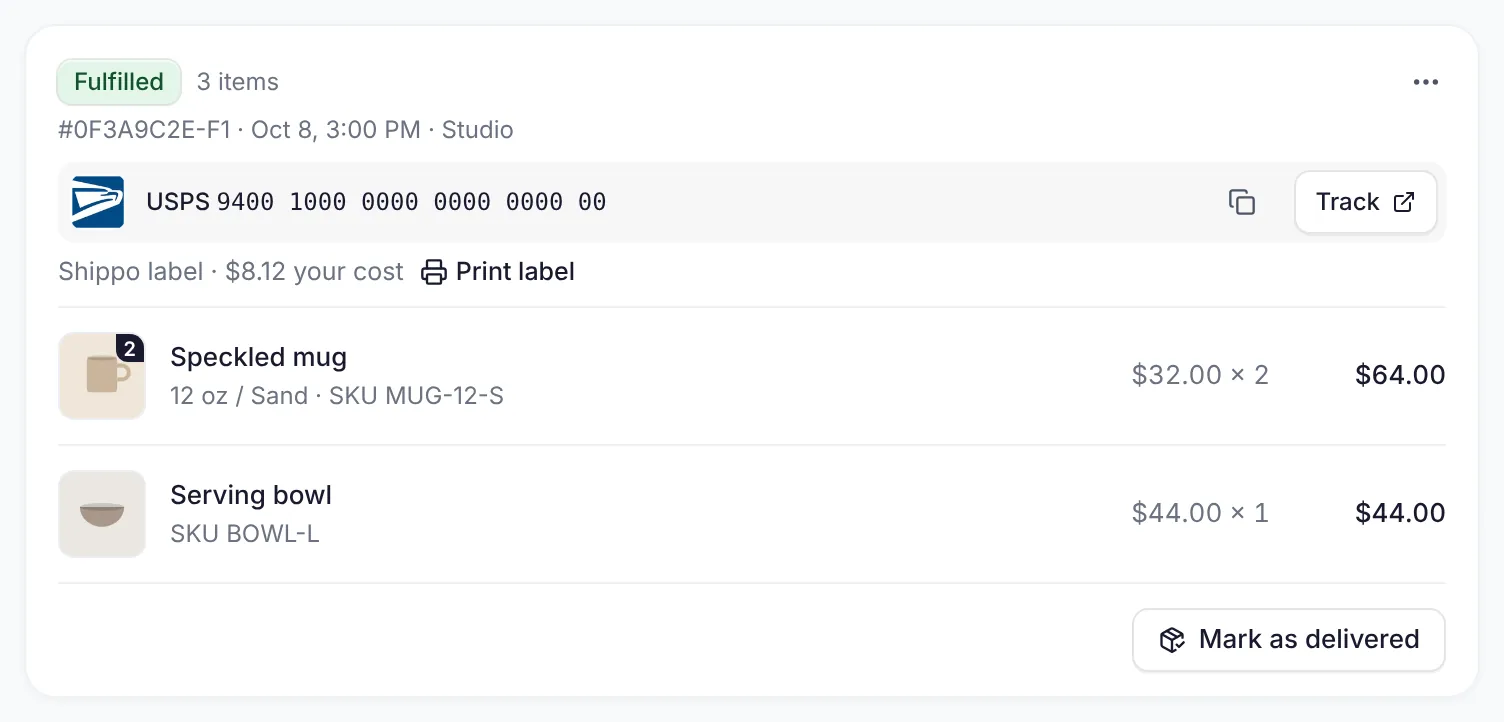
The label stays on its shipment. Press Print label under the tracking number, or Print label in the shipment's menu (the three dots). You can print it as many times as you need.
Fulfill without buying a label
Bought postage at the counter, or use your own carrier account? Fulfill items works the same way without a label.
- Press Fulfill items. With Shippo or EasyPost connected, keep Add tracking chosen at the top.
- Choose the carrier, then type the tracking number. Storelib makes the tracking link for the carriers it knows. For any other, choose Other and paste its tracking link.
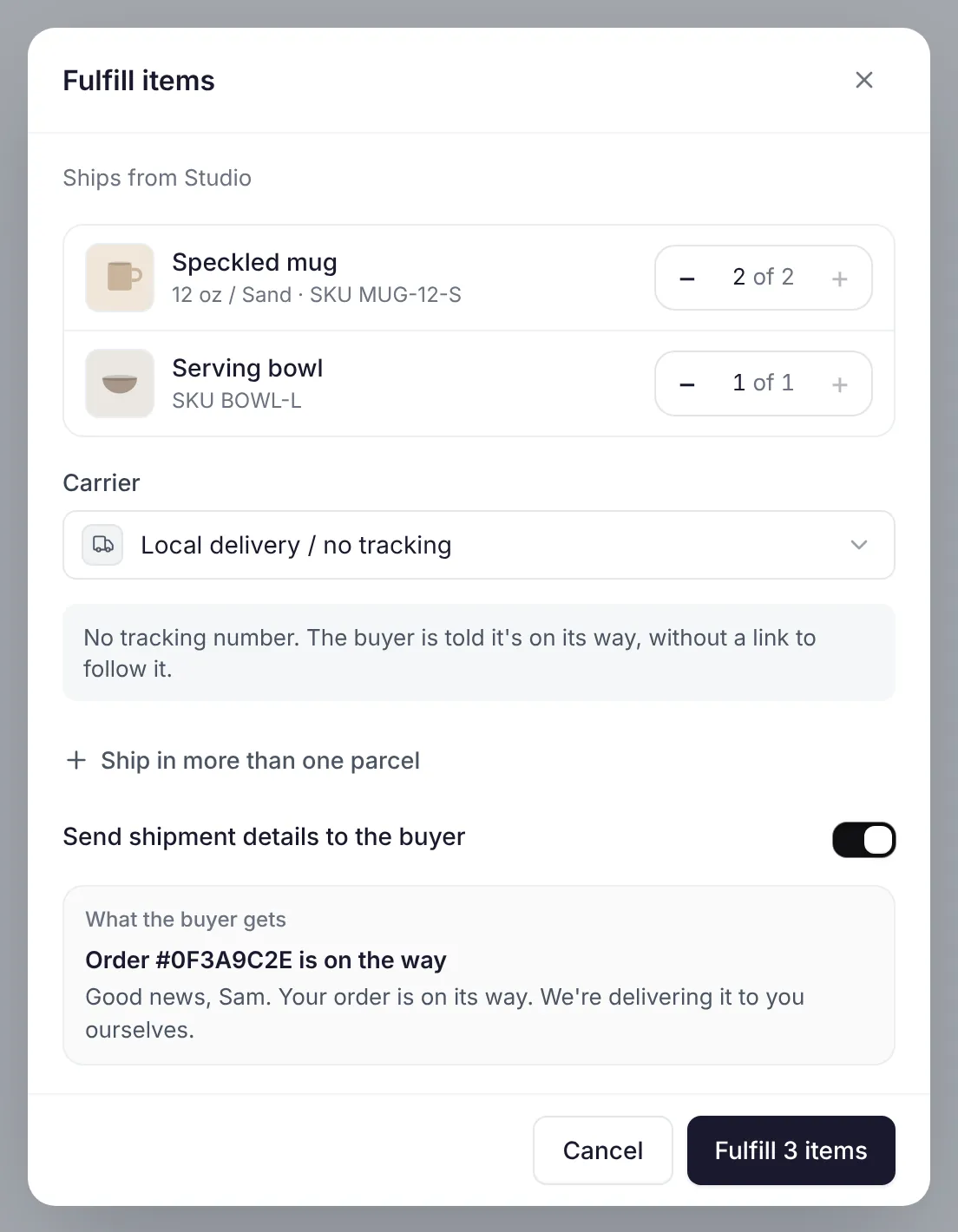
- No tracking number? Choose Local delivery / no tracking. The buyer is told it's on its way, without a link.
- Keep Send shipment details to the buyer on and press Fulfill.
Forgot the number? Add it later with Add tracking on the shipment. Fixing a typo: Edit tracking in the shipment's menu. More in Ship your orders.
Send part of an order
- In Fulfill items, lower the quantity of what isn't ready. Only what's left on the steppers ships.
- With a label, the weight drops with the items, so the rate is for this parcel only.
- The order shows Partially shipped. What's left stays on the Unfulfilled card for later, and the buyer's email says the rest follows.
- Several parcels at once, each with its own tracking? Press Ship in more than one parcel. Labels are bought one parcel at a time.
Local delivery and pickup
When the buyer chose Local delivery, you bring it yourself, so there's no carrier and no label. Fulfill items starts on Local delivery / no tracking. Press Fulfill when it leaves, then Mark as delivered on the shipment when it's handed over.
For pickup, the card's button is Mark ready for pickup, and the buyer gets your address and instructions. Press Mark picked up when they've collected it. See Local pickup.
When a partner ships it
Items sent by a warehouse, supplier or print partner are on a card of their own that says who ships them. They get the order by email, webhook or their own connection, and print their own label, so Buy a label isn't offered for those items. Their tracking comes back to the order and the buyer is emailed. If they send you the number instead, press Fulfill items and add it yourself.
Void a label
Bought the wrong size, or the order changed? Void the label before the carrier scans it.
- On the shipment, open the menu (the three dots) and press Void label.
- Confirm. The items go back to Unfulfilled and back in stock for this order. The buyer is not emailed.
- Buy a new label with Fulfill items, or fulfill another way.
- Some carriers refund at once and the label shows as voided. Others refund only once they confirm it wasn't used, which can take a few days or a few weeks. The shipment shows void requested until then.
- If the carrier refuses (the label was scanned, or its void window passed), the shipment shows void refused. Contact Shippo or EasyPost about that label.
- A parcel already in transit can't have its label voided.
A label that isn't on a shipment
If you cancel a shipment that has a label, or the items couldn't be marked shipped right after buying, the label isn't lost. It gets its own card on the order, so you can still print it, ship with it or void it to get your money back.
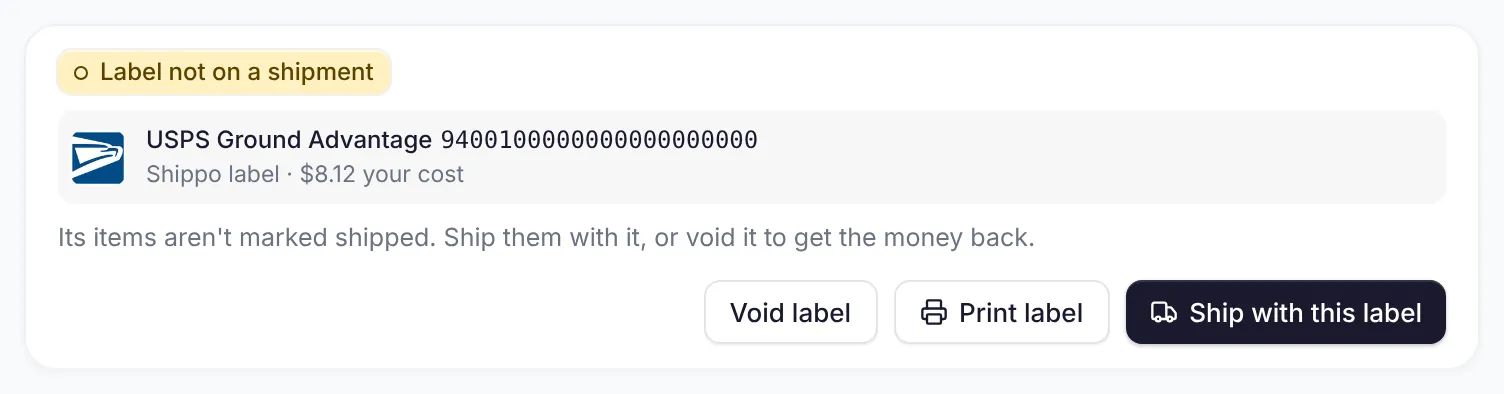
- Ship with this label sends the items the label was bought for, with its tracking number. Only what's still unfulfilled ships.
- The buyer is emailed only if they never heard about this parcel. A shipment cancelled and sent again with the same label isn't news to them.
What the buyer sees
- The shipping email with the carrier, the tracking number and a Track your package button. For part of an order, it says the rest follows.
- Their order page, with each shipment, a Track package button and, when Storelib follows the parcel, every carrier scan.
- Out for delivery and delivered emails as the parcel moves.
- Never your label's price. It's your cost, kept on the order for you.
More in Tracking and the buyer's order page.
Hold an order back
Something to check first, like an address that looks wrong or an item you are waiting on? Open the Unfulfilled card's menu and press Hold fulfillment. Pick a reason and add a note if you like. While it is on hold, nothing on the order can be fulfilled or get a label, and nothing goes to a print partner, supplier, your webhook or ShipStation. Press Release hold on the On hold card when it's ready: anything that was waiting is sent then.
When a partner didn't get the order
A print or dropship partner can refuse an order, for example when a SKU doesn't match its product. The partner's card on the order says why. Fix the cause in the partner's account or in Settings > Integrations, then press Send again on that card. It is never sent twice: once the partner has the order, Send again is refused. Once sent, the card shows what the partner charges you, when it says.
Cancel an order a partner already has and Storelib cancels it there too (Printful, Printify, Gelato and CJ Dropshipping). If the partner has started making it, the order says so and you cancel it in the partner's account. Your own system gets an order.cancelled webhook; a supplier who was emailed the order needs to be told by you.
Packing slips and the order summary
Packing slip prints the list for the box: the items with variant, SKU and quantity, the ship to address, the buyer's note and a gift message, with no prices. Order summary in the same menu prints the whole order with prices and totals. On the page itself you can pick A4 or Letter and show or hide prices. To keep a PDF, choose Save as PDF in the print window. Tick orders on the Orders list to print their slips in one go.
Buying a label for an order whose buyer chose a carrier calculated rate at checkout? Buy a label starts on that app and picks the service they paid for, and shows what they paid.
Common problems
| What you see | What to do |
|---|---|
| No Buy a label button | Connect Shippo or EasyPost in Settings > Integrations. It's also not offered for pickup, local delivery, or items a partner ships. |
| Add a location with its address | Open Settings > Locations and fill in the street, city and country of the place you ship from. |
| The order has no complete delivery address | Press Edit on the order's Shipping address card, fix it, then get rates again. |
| Enter the parcel's weight | Your products have no weight saved. Weigh the packed parcel and type it, or add weights to the products. |
| No rates came back | Check the box size and weight, and both addresses. Make sure the carriers are turned on in your Shippo or EasyPost account. |
| That rate has expired | Rates last a short while. Press Get rates again and pick one. |
| Insufficient balance, or a card error | Shippo's or EasyPost's own words. Top up or fix billing in that account, then buy again. |
| Test key: the label is a free sample | You connected a test key. Don't post a parcel with it. Replace the key with your live one in Settings > Integrations. |
| The label was bought but the items could not be marked shipped | Nothing is bought twice. Press Ship with this label on the label's card, or press Buy label again. |
| This label purchase did not finish | Check your Shippo or EasyPost account for a label on this order before buying another, then get rates again. |
More in Orders and tracking
- Ship your orders: from Unfulfilled to Delivered
- Tracking and the buyer's order page
- Cancel an order and give the money back
Related articles
- Units and packagesPick kilograms or pounds, and save the boxes you ship in so weight based rates charge for the whole parcel.
- Who ships it: fulfilment typesShip it yourself, or use a fulfillment center, a supplier or print on demand: one answer for the store, and any product can have its own.
- Integrations: analytics, pixels and fulfilment partnersAdd Google Analytics, Meta, TikTok and other pixels to your website, send orders to Printful, Printify or your own system, and see what's next.
- Cancel an order and give the money backCancel an order that hasn't shipped, put the stock back on sale and refund the buyer, or answer a buyer who asked to cancel.
Still stuck? Contact support and a person on the team replies by email. Selling on Storelib? Open a request from your dashboard.